No agent should answer everything. Some questions are out of scope (legal, billing exceptions, complaints), some need a human’s judgment, and some users just prefer talking to a person. Owlish’s handoff flow is built so the transition is clean — the visitor doesn’t repeat themselves, and your operator picks up with full context.
How handoff works
When handoff fires, three things happen:
- The session is flagged in Helpdesk → Inbox under the Awaiting handoff filter (and surfaces in the Live conversations view too, since it’s active).
- The visitor sees a “we’re connecting you with a human — usually within a few minutes” message.
- Available operators are notified (in-app and, if configured, via email or Slack).
The agent stops generating new replies until an operator either takes over or releases the session back. To pick up a handoff, switch into Helpdesk mode in the console.
Triggering handoff
Handoff can fire three ways:
- Visitor asks for it. “Can I talk to a person?” — the agent recognizes this and triggers handoff.
- Agent decides. When the agent is uncertain or the topic is in your no-answer list, it triggers handoff itself.
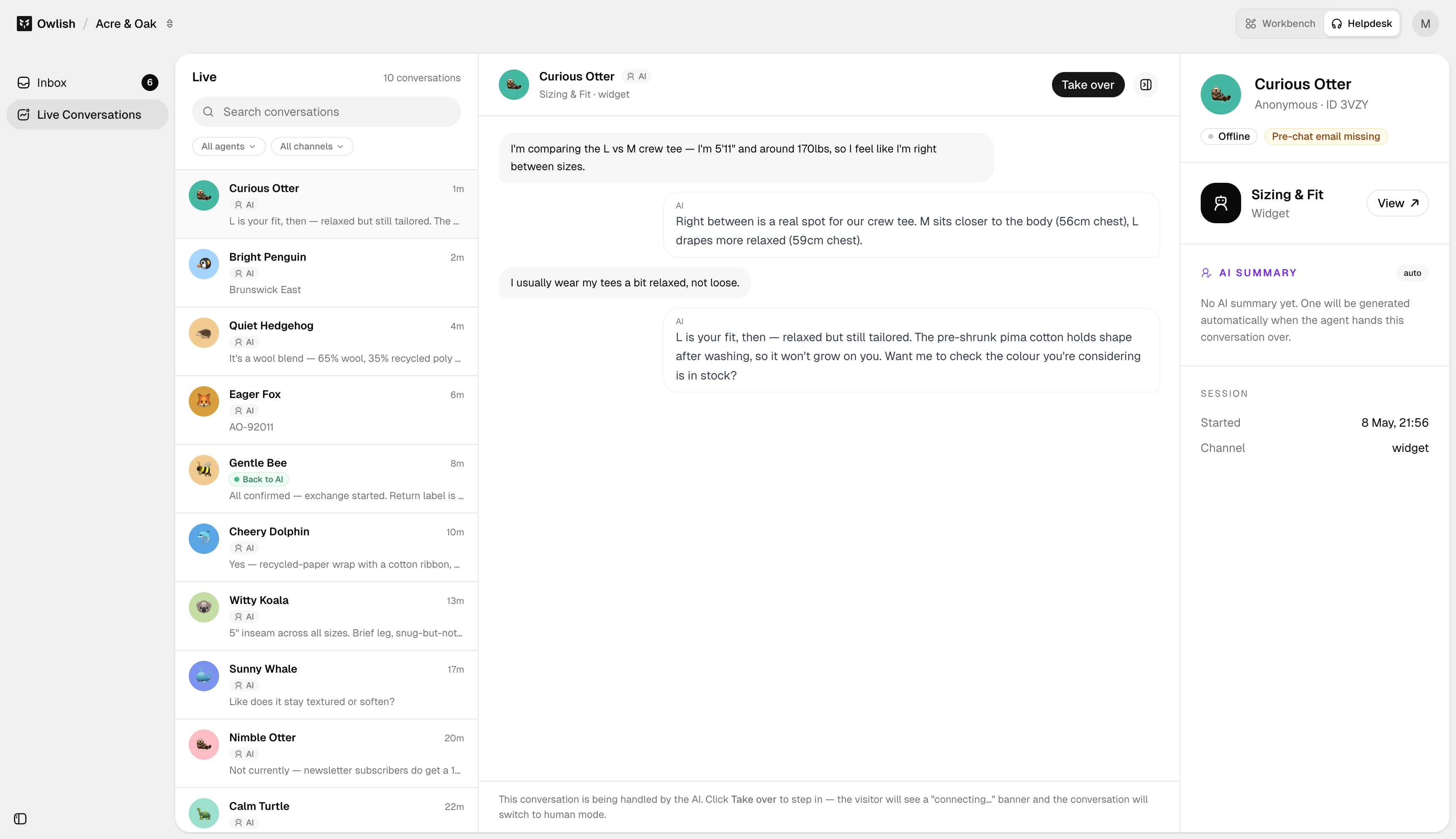
- Operator pulls. From the inbox, an operator can take over any active session.
You configure which of these are enabled per agent under Agent → Handoff settings.
Plan-tier behavior
Handoff is opt-out on Growth and Scale (enabled by default; you can disable). On Starter, handoff is hard-gated off — the agent will answer or refuse, but won’t pull in a human. Agency tier inherits Scale behavior.
Picking up a conversation
In the Inbox, click Claim to take ownership of the session. The agent stays paused; you’re now the participant the visitor is talking to. Use Send operator reply to message them. When you’re done, click Resolve to close the session, or Return to AI to hand control back to the agent.
If you need to interrupt the agent mid-stream, Barge in stops the current generation and gives you control immediately.
Next steps
- Conversations inbox — the master list where handoff requests appear.
- Members — who in your workspace can take over a session (Operators and above).