Slack is the second most common channel after the web widget — usually for internal use cases (IT helpdesk, HR Q&A, engineering on-call). The same agent that runs on your website can run in Slack with no separate configuration.
Connect to Slack
On the agent’s page, Channels → Slack → Connect. Owlish redirects you to Slack’s OAuth flow; pick the workspace you want to install into and approve. You’ll come back to the channel page with a connected status.
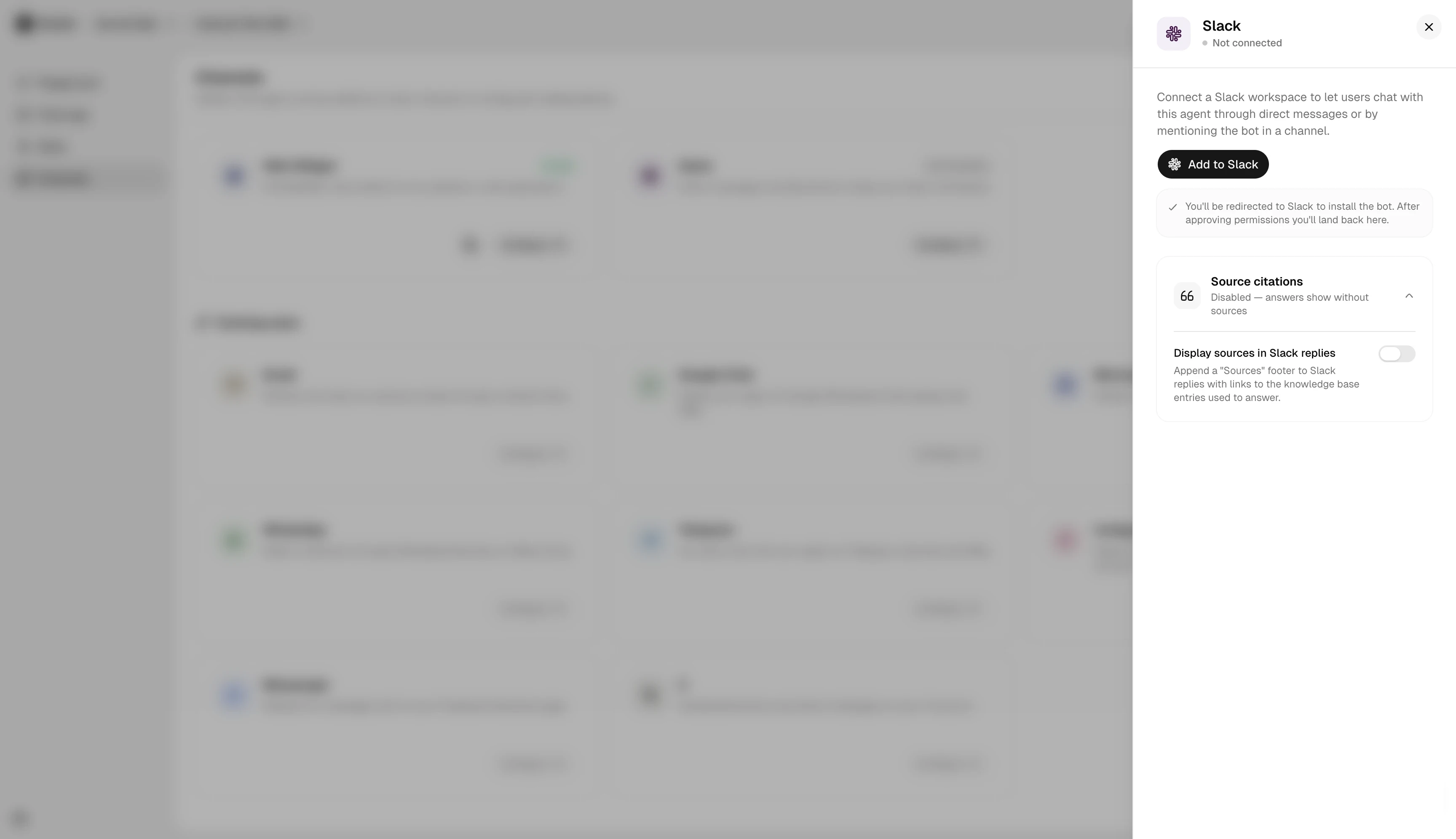
Where the agent answers
After install, the agent answers in three places:
- Direct messages — anyone in the workspace can DM the bot. The conversation is private to that user.
- Mentions —
@AcmeBot what's the refund policy?in any channel the bot is invited to. Threaded replies stay in the same thread. - Subscribed threads — once the agent has replied in a thread, it watches for follow-ups without needing another mention.
Adding the bot to channels
In Slack, type /invite @AcmeBot in any channel you want it active. The bot honors Slack’s channel permissions — it can only read messages in channels it’s been invited to.
Disconnecting
Channels → Slack → Disconnect removes the bot from the workspace and deletes the OAuth credentials. Conversation history in Owlish is preserved (visible in the Helpdesk inbox) but no new messages flow.
Next steps
- Microsoft Teams for the Microsoft-shop equivalent.
- Human handoff so a Slack thread can pull in a human operator.