API keys let scripts and external systems read or write to your workspace without a user session. They’re how the public API at api.owlish.bot/docs authenticates against your data. API and MCP access are available on Growth and Scale workspaces; Free and Starter do not expose these programmatic surfaces.
Create an API key
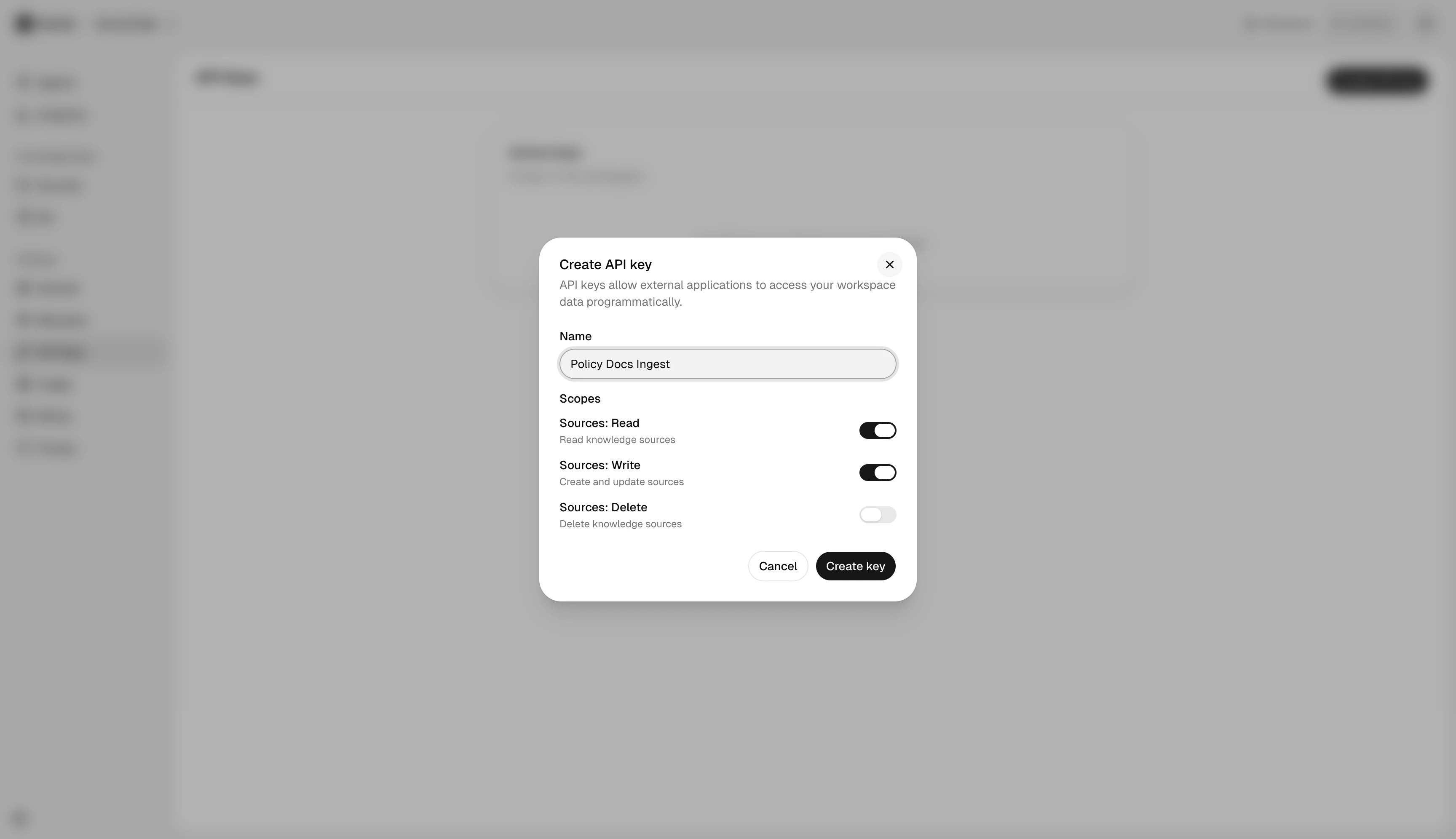
In Settings → API keys, click Create API key. The dialog asks for:
- Name — descriptive, what the key is for. Visible to admins on the keys list.
- Scopes — granular permissions:
- Sources Read (
knowledge_base:read) — list and inspect knowledge sources and folders. - Sources Write (
knowledge_base:write) — create, update, sync, retry, and restore sources and folders. - Sources Delete (
knowledge_base:delete) — soft-delete or permanently delete sources and folders.
- Sources Read (
Pick the smallest set of scopes the integration needs. You can always create another key with broader scopes later.
After creation
The full key is shown once in the post-create dialog. Copy it immediately into your secrets manager — you can’t view it again. Workspace keys begin with owl_wsk_; the keys list afterwards only shows a short prefix for identification.
Manage active keys
Each row shows the name, key prefix, scopes, last-used timestamp, and creation date. To revoke, click the row → Revoke. Revoked keys move to the separate Revoked Keys table for audit; they can’t be reactivated.
Best practices
- Rotate keys periodically. The “Last used” timestamp helps spot keys that aren’t being used and can be cleaned up.
- One key per integration. Don’t share a single key across multiple systems — you lose attribution and can’t revoke without breaking everything.
- Never commit keys to source control. Use environment variables or a secrets manager.
Next steps
- OpenAPI specification — machine-readable operations, schemas, and required scopes.
- Owlish developer platform — REST, OAuth discovery, and MCP setup.
- api.owlish.bot/docs — the interactive API reference.
- Members — for human access via the console.