Every conversation in Owlish runs through an agent. Creating one is a 5-step wizard that uses your website as the starting point — the wizard paints the brand, primes the knowledge base, and drops you straight into the Playground.
You can have multiple agents in a workspace (a public support bot, an internal IT helpdesk, a sales qualifier). Knowledge folders are shared, so multiple agents can ground answers in the same sources.
The wizard
From the Agents page in the console sidebar, click New agent. The wizard runs five steps:
Step 1 — URL + use case
Paste the URL the agent should learn from (your marketing site, help center, etc.) and pick a use case — Customer Support, Sales, Internal Helpdesk, etc. The use case applies a defaults bundle so you’re not starting blank.
Step 2 — Discovery
Owlish fetches your site, extracts brand metadata (logo, primary color), and lists internal links it could ingest. This step auto-advances; you don’t need to do anything.
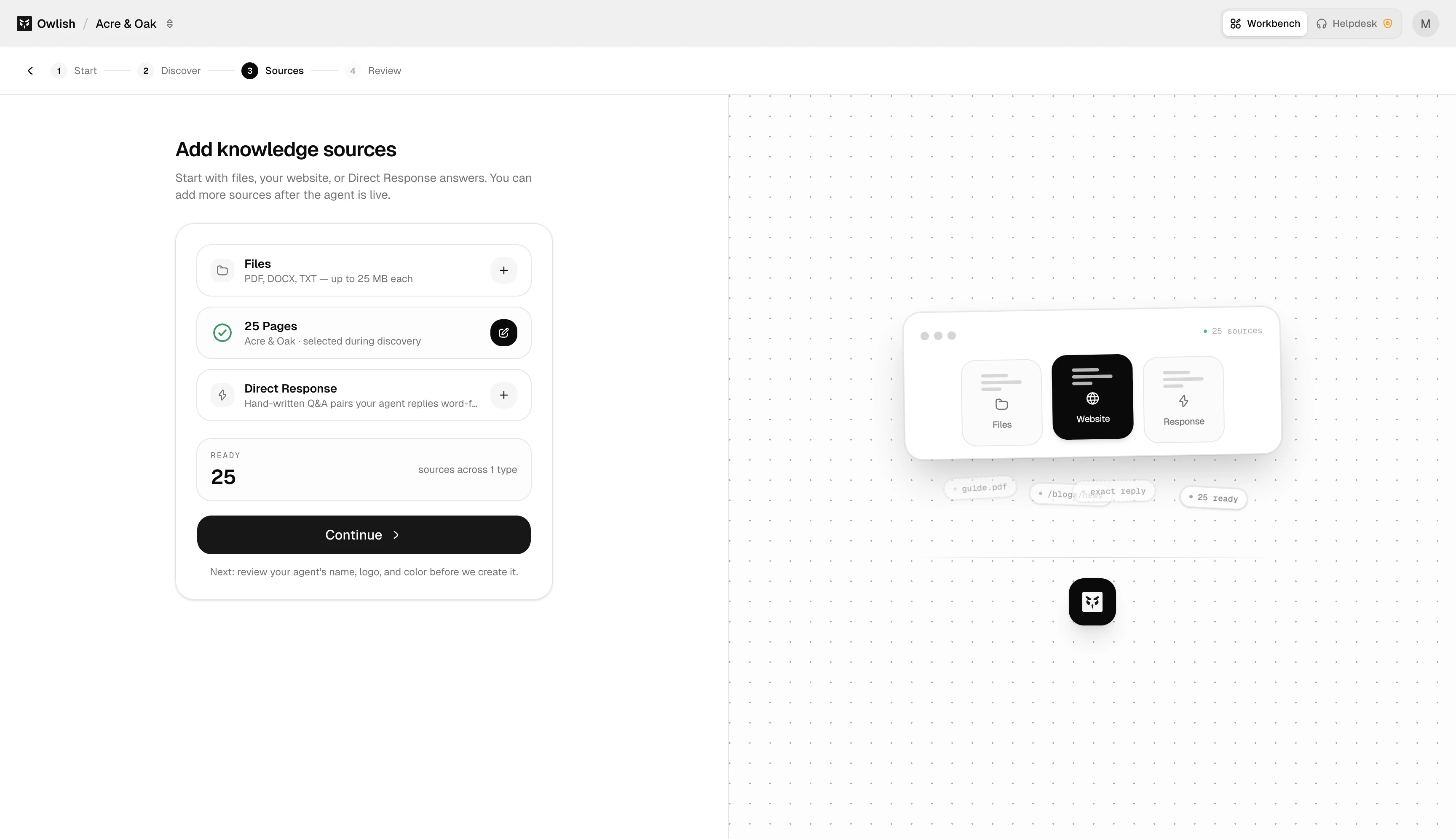
Step 3 — Sources
Confirm or extend the knowledge base. The website from Step 1 is already added. You can add Files, more Websites, or Direct Response entries (canonical Q&A pairs) before creation. None of this is required — the auto-added website is enough.
Step 4 — Review
Confirm the agent’s name (defaults from discovered brand), logo, and primary color. All three are editable later on the agent’s Brand tab — these are starting values.
Step 5 — Create
Owlish creates the agent and drops you on its Playground page. From there you can chat with the agent immediately and tune everything else from the configuration tabs.
What’s not in the wizard
- Instructions / system prompt — set on the Playground’s Model tab, not in the wizard.
- Channel configuration — separate page at Channels, not in the wizard.
- Skills (handoff, escalation) — separate page at Skills, not in the wizard.
These all live one click away in the agent’s sidebar after creation.
Next steps
- Playground — what each of the four tabs does.
- Tone and fallbacks — write good Instructions for the agent’s voice and refusal behavior.