A workspace is a tenant. Everyone who needs access to your agents, knowledge, inbox, or billing belongs to the workspace as a member with a role.
Invite a member
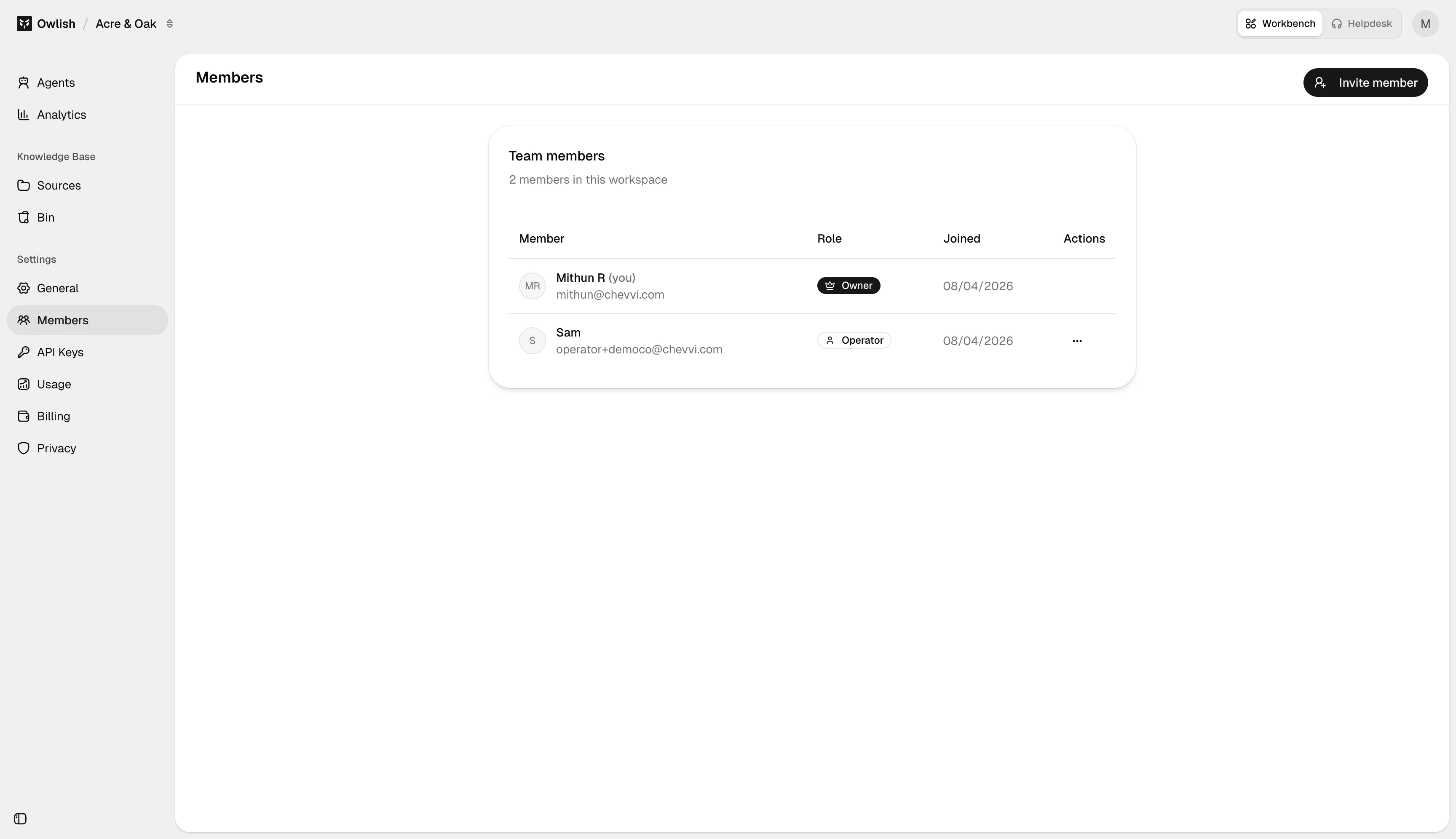
In Settings → Members, click Invite member. Enter the teammate’s email and pick a role. They’ll get an email with a sign-in link scoped to your workspace. Pending invitations show in the Pending Invitations table at the top of the page until they accept (or until you revoke).
Roles
- Owner — full access including billing, plan changes, and workspace deletion. Exactly one owner per workspace.
- Admin — full access except billing-tier changes and workspace deletion. Use for team leads who run the agents and knowledge but shouldn’t change the bill.
- Operator — focused role for the inbox. Can view conversations, claim sessions, take over from the agent, and reply. Can’t change agent config, knowledge, or billing.
Seat limits
Your plan caps the number of team seats. The Members page shows current seat usage in the header; if you’re at the cap, the Invite member button is disabled with a link to upgrade.
Removing a member
Click the row → Remove from workspace. They lose access immediately. Anything they did (transcripts, sessions they took over) is preserved with attribution.
Transferring ownership
Owner-only. See Settings → General.
Next steps
- General settings — workspace name, ID, fallback message.
- API keys — programmatic access to the workspace.