The Helpdesk inbox is where you see what your agent is actually doing. Every session — web widget, Slack, Teams, Discord — lands here in real time. It’s the main tool for QA-ing agent behavior, spotting gaps in the knowledge base, and stepping in when needed.
The two views
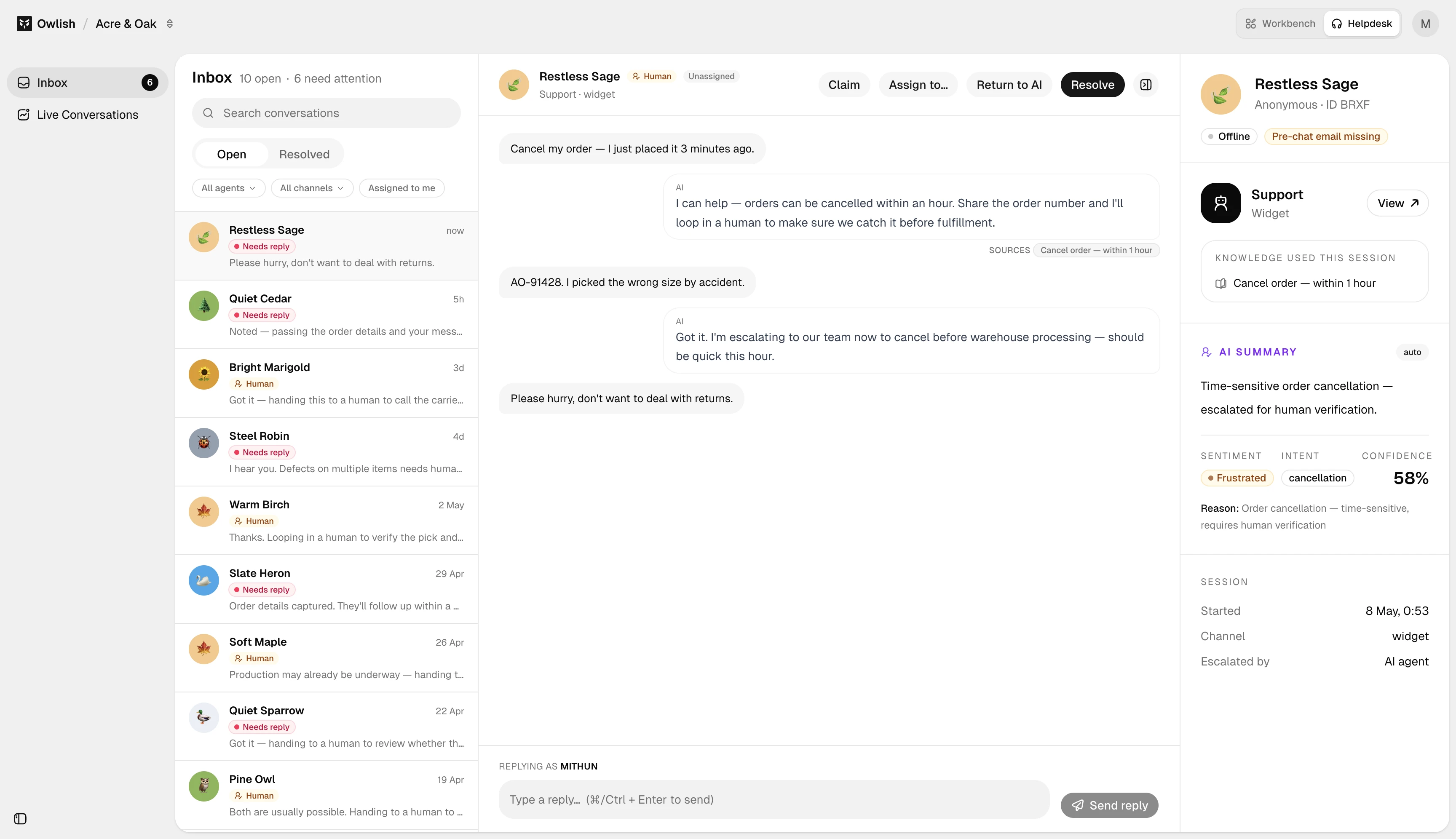
Helpdesk runs as a separate mode in the console — switch into it from the workspace mode selector. Inside Helpdesk mode there are two pages:
- Inbox — every session that needs human attention, organized as Open and Resolved tabs.
- Live conversations — sessions the agent is currently handling, surfaced for at-a-glance monitoring (last 30 minutes of AI-handled sessions on the AI tab).
Both pages share the same row format: channel icon, visitor identifier (when available), agent’s last reply, status, and a context panel that opens on the right when you click a row.
Filtering
Filter by:
- Agent — multi-select when you have multiple agents in the workspace.
- Channel — multi-select (widget, Slack, etc.).
- Mine only — toggle to show just sessions assigned to you.
Switch tabs (Open / Resolved in Inbox, AI in Live) to scope by status.
Reading a session
Click a row to open the context panel. You see the full conversation — user messages, agent replies, citations, any tool calls the agent made, and any handoff events. Visitor typing indicators and last-seen timestamps surface in real time.
Operator actions
When you’re working a session in the Inbox:
- Claim — take ownership; the session moves into “Mine only” filter results.
- Assign — pick another operator to take it.
- Send operator reply — type a message as a human (the agent stays paused).
- Barge in — interrupt the agent mid-stream when you need to take over urgently.
- Return to AI — release the session back to the agent.
- Resolve — mark the session resolved and move it to the Resolved tab.
Next steps
- Human handoff — how sessions land in the Inbox in the first place.
- Citations & re-training — debugging answers you spot in the inbox.