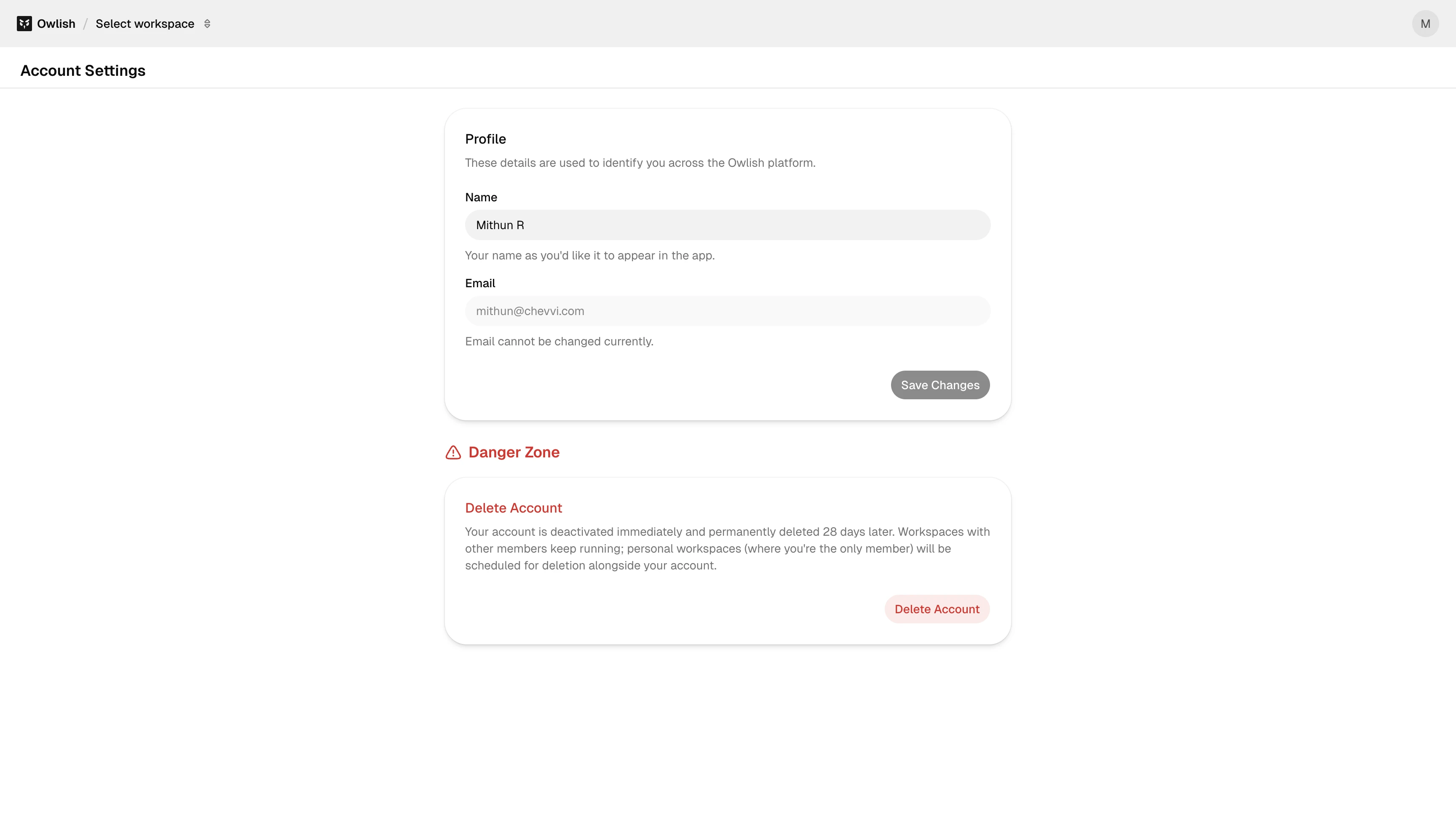
Account settings are the personal layer — your name, your email, and the controls for exporting or deleting your account. They’re separate from workspace-level settings (which apply to everyone in your workspace, not just you).
Open them at /account-settings or via your avatar menu in the console.
Profile
- Name — editable. Used in the avatar menu and in the audit trail when you take actions.
- Email — read-only. Tied to your sign-in method; contact support if you need to change it.
Export your account data
Download a JSON file containing your profile, workspace memberships, and audit log. Useful for personal data portability (GDPR Article 20) or for migrating to another account.
The export covers your personal data — it does not include workspace-owned content like agents or knowledge bases. Workspace data is owned by the workspace, not individual members.
Delete your account
In the Danger Zone, click Delete account. Owlish first checks for blockers:
- Solo-owned workspaces — if you’re the only owner of any workspace, you can’t delete your account until you transfer ownership or delete those workspaces. The check lists which workspaces are blocking and links to each.
- Pending obligations — outstanding invoices block deletion until settled.
Once blockers are cleared, confirm by typing delete account in the input. Deletion is final — there’s no soft-delete window.
What deletion removes
- Your profile and authentication.
- Your memberships in any workspace.
- Personal preferences and audit-log entries attributed to you.
What deletion does not remove
- Workspaces you owned and transferred — they keep running under the new owner.
- Anything attributed to you in workspace-level audit logs (e.g., “X created agent Y”) remains, but your name is replaced with
[deleted user].
Next steps
- Settings → Members — for transferring workspace ownership before deletion.
- Help — if you need to change your email, recover access, or report an issue.