How to Add an AI Chatbot to Your Shopify Store (2026 Guide)
A practical 2026 guide to adding an AI customer-support chatbot to a Shopify store: what Shopify's built-in AI does and doesn't do, how to embed a grounded support agent in your theme, the live-order-data limit to plan around, and when to hand off to a human.
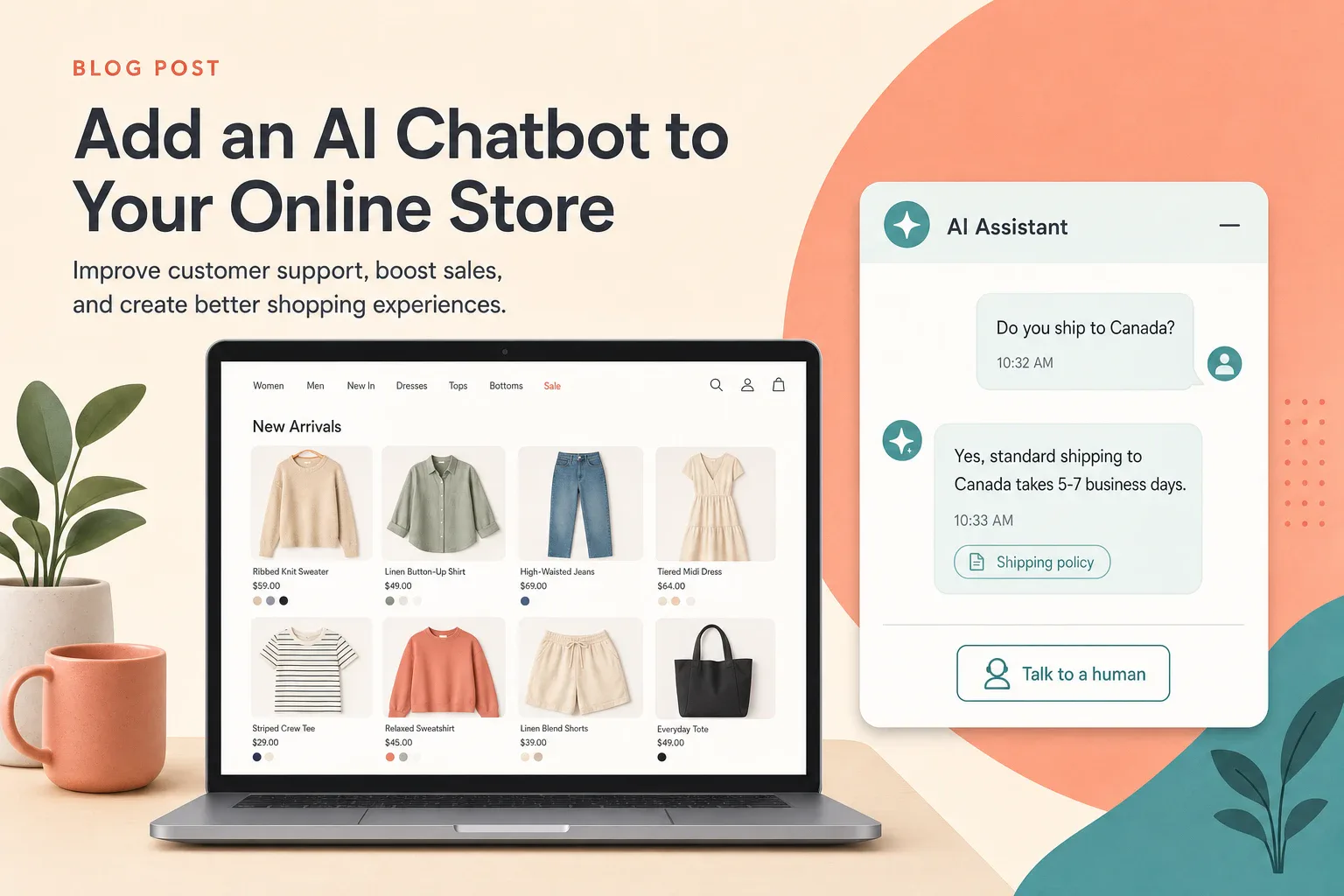
Most Shopify stores can answer the same handful of questions hundreds of times a week — shipping times, returns, sizing, “do you ship to my country” — and a customer waiting on an email reply for that is a customer who might not check out. An AI chatbot can answer those instantly, but only if you set it up to answer from your real store content and hand off cleanly when it shouldn’t guess.
This guide covers what Shopify’s built-in AI actually does (and where it stops), what an AI support chatbot needs to do on a store, how to embed one in your theme, the one data limit every Shopify owner should plan around, and how to keep answers trustworthy. The first half is tool-agnostic. The second half covers where Owlish fits, because Owlish is our product.
Shopify already has AI — but not the kind that answers your customers
Before you add anything, it helps to know what Shopify gives you out of the box, because it’s easy to assume “Shopify has AI now” means “Shopify answers my customers for me.” It mostly doesn’t.
Shopify’s native AI comes in two flavors, and both are aimed at you, the merchant, not at your shoppers:
- Sidekick is a commerce assistant inside your Shopify admin. It helps you set up the store, write copy, edit products, and answer questions about your own business data. It’s a tool for running the store, not a customer-facing support agent. (Shopify Help Center: Sidekick)
- Shopify Magic powers AI features across the admin, including suggested replies in Shopify Inbox. When a customer messages you, Magic drafts a reply in the composer based on your store information — but a person still reviews and sends it. It’s assistive drafting, not autonomous answering, and as of June 2026 the suggested replies are English-only and require Shopify Inbox with at least one conversation. (Shopify Help Center: suggested replies)
Shopify Inbox also supports instant answers — saved FAQ-style responses you write and trigger manually. (Shopify Help Center: instant answers) Useful, but it’s a static FAQ, not an agent that understands a question phrased five different ways.
So the gap is clear: Shopify helps you draft answers and run the store, but if you want an agent that talks to customers directly, answers in their words, works while you sleep, and pulls from your actual policies, you add a dedicated AI support chatbot on top. That’s what the rest of this guide is about.
What an AI chatbot actually needs to do on a Shopify store
A chatbot that just “uses AI” is a liability on a store, because a confident wrong answer about a refund or a delivery date costs you a sale and a trust hit. A useful Shopify support chatbot needs four things:
- Answers from your real content, not the open internet or a generic model’s guesses. Your shipping policy, return window, sizing guide, and product pages — not “as an AI language model.”
- A visible source for answers that touch money or promises, so when it’s wrong you can trace the answer to a document and fix the document.
- A clean handoff to a human for anything account-specific, disputed, or risky.
- A no-code install that drops into your theme without a developer, and stays out of the way of your checkout.
Notice what’s not on that list: pretending to be a human, upselling aggressively, or trying to handle every edge case on day one. The stores that get value from a chatbot start narrow and honest.
Step 1: Start from your real contact reasons, not your whole catalog
Open your existing inbox — Shopify Inbox, email, whatever you use — and read the last few hundred conversations. Group them by intent. On most stores the high-volume questions are short and repetitive:
- “Where’s my order?” / “Has it shipped?”
- “What’s your return and refund policy?”
- “Do you ship to [country]? How much and how long?”
- “Is this in stock / coming back?”
- “What size should I get?”
- “Can I change or cancel my order?”
Rank them by volume, then by risk. The sweet spot for automation is high volume, low risk, and backed by a document you trust — shipping timelines, return policy, sizing, shipping regions. Push the risky ones (refund disputes, payment problems, address changes after fulfillment) toward handoff from the start. You’re not trying to automate everything; you’re trying to take the boring 60–70% off your plate so humans handle the rest with full attention.
Step 2: Be honest about what the chatbot can and can’t see
This is the step most “add a Shopify chatbot in 5 minutes” guides skip, and it’s the one that will bite you.
A content-trained AI chatbot answers from the documents and pages you give it. Unless a tool is specifically built to connect to Shopify’s order and inventory APIs, it cannot look up a specific customer’s live order status or real-time stock level. That matters because “Where’s my order?” is usually the single most common question on a store.
So decide upfront which model you’re running:
- Policy + handoff (most common, simplest): The chatbot answers the general version — “Standard orders ship in 1–2 business days and you’ll get a tracking email” — and for the specific order it points the customer to their order-status page or account, or hands off to a human. This is honest, safe, and covers the vast majority of value.
- Live order lookup (more setup, deeper integration): A tool wired into your Shopify order data can return a specific tracking number. This is more powerful but requires a chatbot that actually integrates with Shopify’s order APIs — confirm it does before you promise customers live tracking.
Don’t let a chatbot improvise order-specific details it can’t actually see. A made-up delivery date is worse than “let me get a teammate to check that for you.”
Step 3: Ground the agent in your store’s real content
Once you know what the agent should handle, give it the sources to handle it. For a Shopify store, the highest-value sources are usually:
- Your shipping, returns, and refund policy pages.
- Your FAQ or help center, if you have one.
- Product and collection pages for materials, fit, care, and specs.
- A sizing guide, warranty terms, and any “how to use” docs.
- Short direct answers for questions that don’t live in any document yet (store hours, restock cadence, wholesale inquiries).
Two rules keep this clean. First, one clear answer per topic — if your return window is stated three different ways across the site, the agent will pick one at random, so reconcile them. Second, date anything time-sensitive (holiday shipping cutoffs, sale terms) so the agent doesn’t quote an expired promise.
This is the part the whole category agrees on. SiteGPT’s customer-support guide and Chatbase’s customer-service guide both treat source quality and clear automation boundaries as the actual work, not an afterthought. (SiteGPT) (Chatbase) On a store, where the answer goes straight to a buyer with no operator reviewing it, that’s doubly true.
Step 4: Add the chatbot to your Shopify theme
Most AI support chatbots install on Shopify the same way: a small JavaScript snippet you paste into your theme so the chat bubble loads on every page. You usually do not need a Shopify App Store app or a developer for this.
The reliable, version-safe path:
- In your Shopify admin, go to Online Store → Themes.
- Duplicate your live theme first (⋯ → Duplicate). Always edit a copy, never your live theme directly.
- On the copy, choose ⋯ → Edit code.
- Open
theme.liquidunder Layout. - Paste the chatbot’s embed snippet immediately before the closing
</body>tag. - Save, preview the duplicated theme, confirm the bubble loads and answers, then publish the theme.
A few Shopify-specific notes:
- Pasting before
</body>(rather than in<head>) keeps the widget from blocking your page render. Good chat widgets load asynchronously, but placement still matters for store speed. - Tag managers work too. If you run Google Tag Manager or a similar tool, you can add the snippet as a Custom HTML tag with a page-load trigger instead of editing theme code.
- Restrict the widget to your domain. If your chatbot supports a domain allowlist, add your
myshopify.comdomain and your custom domain so the widget only loads where you intend. - Test the checkout pages. On many plans Shopify’s checkout is locked down and won’t run your theme script, which is usually what you want — you don’t want a chatbot interrupting payment anyway.
Step 5: Set handoff rules before launch, not after
Every store chatbot needs explicit stop conditions. Write them down before you go live. The agent should hand off to a human when:
- it can’t find a relevant source for the question;
- the question involves a specific order, payment, or account change it can’t verify;
- the customer is reporting a damaged, missing, or wrong item;
- it’s a complaint, dispute, or chargeback, or anything with legal or safety weight;
- the customer asks for a person;
- it has already tried and failed to clarify once or twice.
Then make the handoff useful. The human who picks up should see the customer’s question, the source the agent used (or that it had none), what the agent already said, and the customer’s last message — without scrolling the whole transcript. A fast, well-summarized handoff is the difference between “the bot wasted my time” and “that was actually smooth.”
This bot-then-human pattern is exactly where customer-experience research is heading: industry trend roundups for 2026 describe the winning model as automation handling the routine and routing complex issues to humans with full context, not replacing the human entirely. (CX Dive: 2026 CX trends)
Step 6: Test on a staging theme, then watch the first two weeks
Because you duplicated your theme in Step 4, you have a free staging ground. Before publishing, run your real customer questions at the agent — paste in the exact wording from past conversations, including the messy ones, and check three things: Is the answer correct? Is it grounded in the right source? Does it stop and hand off when it should?
After you publish, read conversations by hand for the first two weeks. You’re looking for patterns:
- the agent citing the wrong source for a topic (fix the source or split it);
- customers asking the same thing in different words that the agent misses (add a direct answer);
- the agent being too confident about exceptions (tighten the source, add the caveat next to the rule);
- late handoffs where it should have stopped sooner.
Each pattern is a small content fix, and the next answer gets better. A store chatbot isn’t “set and forget” — it’s “set, read, and tune for two weeks,” after which it largely runs itself.
What to measure (and what to ignore)
Message counts are easy to see and almost useless. A chattier bot is not a better bot. Track outcomes instead:
- Resolved conversations the agent handled fully without a human.
- Repeat questions that disappeared after you fixed a source.
- Handoffs caused by genuinely missing knowledge (a content gap to fill) versus handoffs that are working as designed (risky topics).
- Deflection that’s real, not a customer giving up — a closed chat is not the same as a solved problem.
If you want the deeper version of this, our guide to ticket deflection rate explains why deflection and resolution aren’t the same number, and how to avoid faking the metric.
Where Owlish fits
Owlish is a no-code AI support agent that answers from your own content, shows where each answer came from, and hands off to a human when a question shouldn’t stay with AI. For a Shopify store, that maps to the workflow above:
- Embeds on Shopify via the web widget. Owlish gives you a per-agent embed snippet you paste before
</body>in your theme (or add through a tag manager). The web widget is included on every plan, including the Free plan, so you can start at no cost. There is no separate Shopify App Store app today — it’s the theme-snippet path described above. (Web widget docs) (Customize the widget) - Trains on your store content. Point it at your website and help center, and add files — PDF, DOCX, CSV, TXT, Markdown — plus short direct responses, so answers come from sources you control. (Website sources) (File sources)
- Grounded answers with citations. Answers can show the source they came from, and you can inspect which source grounded an answer to debug and improve it. (Citations docs)
- Human handoff and a shared inbox. A customer can ask for a person, the agent can escalate on its own, or an operator can take over from the helpdesk inbox. Human handoff to operators and the shared helpdesk inbox are available from the Growth plan ($119/mo billed annually, or $149/mo monthly). Paid plans start on Starter at $39/mo billed annually ($49/mo monthly). (Human handoff docs) (Conversations docs) (Plans)
Be clear about the limit from Step 2: Owlish grounds answers on the content you ingest — it does not connect to Shopify’s live order or inventory APIs. So it answers the general “how long does shipping take” from your policy and hands off (or points to the order-status page) for “where is my specific order.” If your top priority is automated, order-specific live tracking pulled from Shopify, choose a tool built around a deep Shopify order integration. If your priority is grounded answers to the repetitive policy, product, and FAQ questions — with citations and clean handoff — that’s exactly what Owlish is for.
Shopify AI chatbot launch checklist
- Read the last few hundred customer conversations and group them by intent.
- Rank intents by volume and risk; pick a few high-volume, low-risk ones to start.
- Decide your order-data model: policy + handoff, or live order lookup.
- Reconcile your policies so each topic has one clear, dated answer.
- Add shipping, returns, FAQ, product, and sizing content as sources.
- Duplicate your live theme before touching any code.
- Paste the embed snippet before
</body>intheme.liquid(or via your tag manager). - Restrict the widget to your
myshopify.comand custom domains. - Write handoff rules for orders, payments, complaints, and “ask for a person.”
- Test real customer questions on the duplicated theme, then publish.
- Read conversations by hand for two weeks and fix weak sources.
- Track resolved conversations and real deflection, not message counts.
FAQ
How do I add an AI chatbot to my Shopify store without an app?
Most AI chatbots install with a JavaScript snippet rather than a Shopify App Store app. Duplicate your live theme, go to Online Store → Themes → ⋯ → Edit code, open theme.liquid, and paste the chatbot’s embed snippet right before the closing </body> tag. Preview the duplicated theme, confirm the widget loads and answers correctly, then publish. You can also add the snippet through Google Tag Manager as a Custom HTML tag.
Does Shopify have a built-in AI chatbot for customer support?
Not a customer-facing autonomous one. Shopify’s Sidekick is a merchant assistant inside the admin, and Shopify Magic drafts suggested replies in Shopify Inbox that a person reviews and sends. Shopify Inbox also offers manual FAQ-style “instant answers.” For an agent that talks to customers directly, answers in their own words, and runs 24/7 from your policies, you add a dedicated AI support chatbot on top of Shopify.
Can an AI chatbot tell my customer where their order is?
Only if it integrates with Shopify’s order data. A chatbot trained on your content can answer the general shipping question (“orders ship in 1–2 business days”) and point customers to their order-status page or a human for the specific order, but it can’t invent a live tracking number it can’t see. If you need automated order-specific tracking, confirm the tool connects to Shopify’s order APIs before you promise it to customers.
Will a chatbot slow down my Shopify store?
A well-built widget loads asynchronously and shouldn’t block your page, especially when you paste the snippet before </body> rather than in the <head>. Test your store speed before and after install, and avoid stacking multiple chat or popup tools that each load their own scripts.
How much does an AI chatbot for Shopify cost?
It varies by tool. With Owlish, the web widget you’d embed on Shopify is included on every plan, including a Free plan, so you can start at no cost; paid plans begin at $39/mo billed annually ($49/mo monthly), and human handoff to live operators starts on the Growth plan at $119/mo billed annually ($149/mo monthly). Other vendors price by conversations, resolutions, or seats — check whether the metric punishes you for succeeding (per-resolution pricing) before you commit.
Shopify, Sidekick, Shopify Magic, and Shopify Inbox are trademarks of Shopify Inc. Other product names mentioned are trademarks of their respective owners. Owlish is not affiliated with or endorsed by Shopify. Shopify feature details and availability described here were checked against Shopify’s Help Center in June 2026; verify current behavior in your own admin, since platform features change over time.
An AI chatbot earns its place on a Shopify store when it has a narrow job, grounded answers, and a fast stop point — not when it tries to do everything. Start with your highest-volume policy and FAQ questions, be honest about what it can and can’t see, and expand once customers and your team trust it.
If you want to try that in Owlish, build your first agent, point it at your store’s policy and help pages, test the questions your customers already ask, and paste the widget into a duplicated theme before you publish.