Squarespace is built for sites that look good and stay simple — which is exactly why a clunky chatbot can ruin one in a single paste of code. The good news: you can add a genuinely useful AI support agent to a Squarespace site in a few minutes, but only if you know which plan tier allows custom code, where the snippet goes, and how to make the bot answer from your real pages instead of guessing.
This guide covers the one Squarespace plan limit that decides whether you can add a chatbot at all, exactly where to paste the embed snippet (and why Footer beats a Code Block for a sitewide widget), how to ground the agent in your own content, the Squarespace-specific gotchas to plan around, and how to keep answers trustworthy. The first half is tool-agnostic. The “Where Owlish fits” section near the end covers our product, because Owlish is ours.
First, check whether your Squarespace plan can add code
This is the step that wastes the most time, because not every Squarespace plan can run a third-party script, and the one you need for a sitewide chat widget — Code Injection — is gated by tier.
As of June 2026, Squarespace’s current plans are Basic, Core, Plus, and Advanced (Squarespace pricing). Code Injection — the panel that lets you add a script to every page — is available on Core, Plus, Advanced, and some legacy billing plans, and is not available on the Basic plan (Squarespace: Using code injection).
So the practical rule:
- Core plan or higher — you have full sitewide Code Injection. The rest of this guide applies directly.
- Basic plan — no Code Injection. You can still embed code on a single page using a Code Block (available on all plans), but a Code Block only loads on the page it’s placed on, so your chat bubble won’t follow visitors across the site. To run a floating widget everywhere, upgrade to Core, or accept that the bot lives on one page (a dedicated “Help” or “Contact” page).
- Legacy plans (older Personal/Business/Commerce billing) — Code Injection is included on Business-and-above legacy tiers. Check your specific plan’s feature list, because Squarespace has renamed and re-bundled plans over time and the rules shift.
If you’re unsure which plan you’re on, open Settings → Billing in your Squarespace dashboard. Don’t assume — the gap between “can paste a script” and “can’t” is the single most common reason a Squarespace chatbot install stalls.
Why Squarespace doesn’t ship a grounded support bot — and what that means for you
Squarespace has added AI features for building a site (generating copy, design blurbs, alt text), but it does not ship a built-in customer-support agent that answers visitor questions from your own pages. That’s the job you’re adding with a third-party widget.
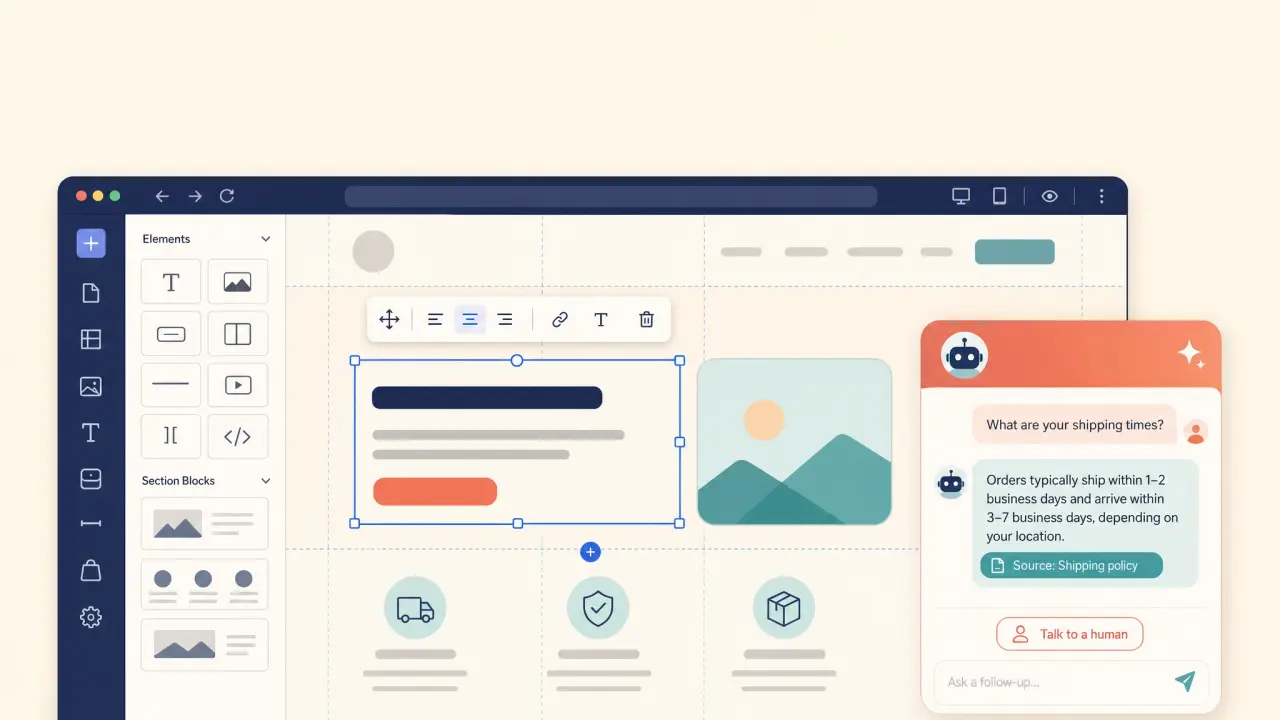
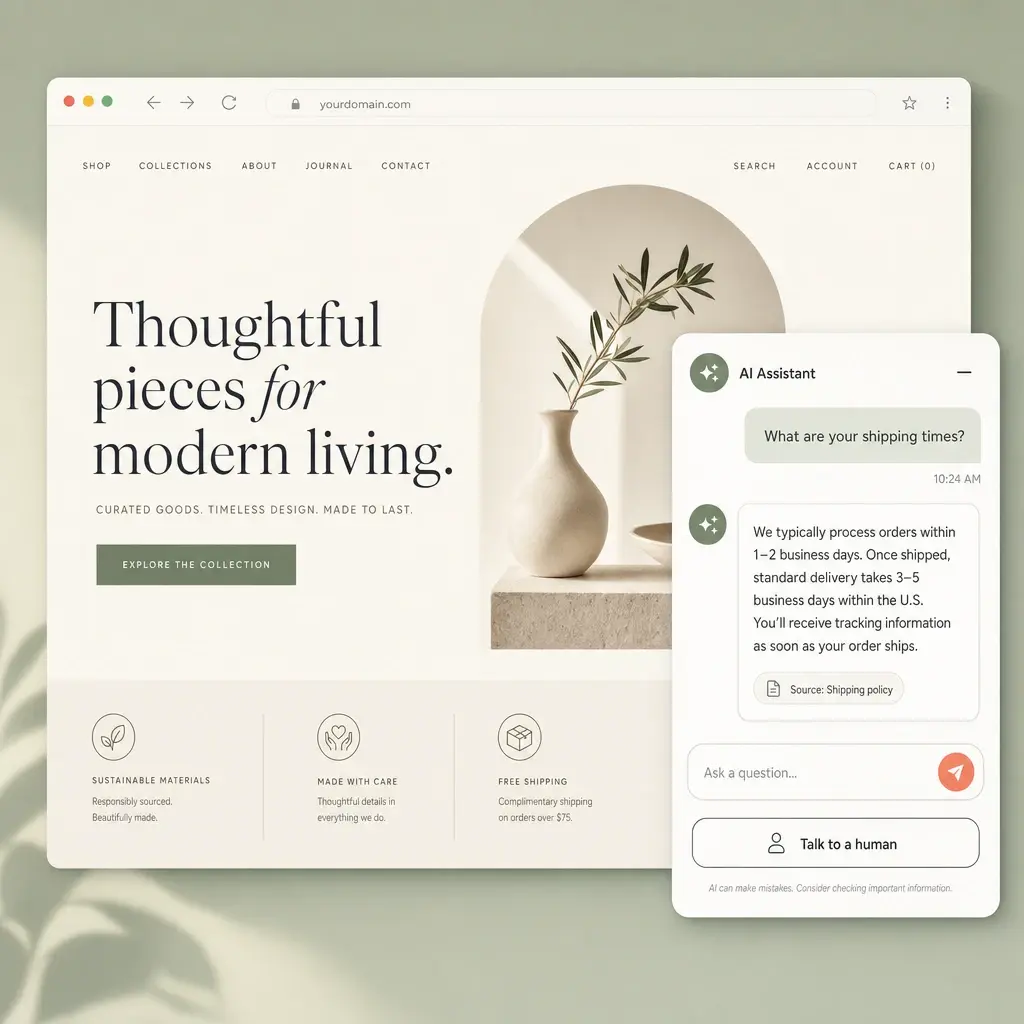
The distinction matters because it shapes what “good” looks like. A content-generation AI helps you write a shipping page. A support AI reads that shipping page and answers “what are your shipping times?” for a visitor, ideally with a link back to the page it used. You want the second thing, and you want it grounded in your real content — not a generic model improvising policies you never wrote.
The two ways to embed: Footer injection vs. Code Block
There are only two real install patterns on Squarespace, and they behave very differently:
- Code Injection → Footer (sitewide). You paste the chatbot’s
<script>snippet once into the Footer field, and it loads on every page, before the closing</body>tag (Squarespace: Using code injection). This is what you want for a floating chat bubble that should be available everywhere. It survives page edits and template tweaks, and footer placement means the script loads after your content so it doesn’t block rendering. - Code Block (single page). You add a Code Block to one page and paste the snippet there. It’s available on every plan, including Basic, but it only runs on that one page. Use this only if you deliberately want chat on a single “Help” page, or you’re on Basic and can’t use Code Injection.
For almost everyone, the answer is Footer injection. The rest of this guide assumes that path.
Step 1: Decide the bot’s job before you touch any code
The fastest way to a bot people trust is to give it a narrow, well-defined job. Before installing anything, read the last few hundred questions you’ve actually received — through your Squarespace contact form, your inbox, Acuity/Squarespace Scheduling messages, and DMs — and group them by intent.
You’ll usually find a short list doing most of the volume:
- shipping times and costs;
- returns, exchanges, and refunds;
- booking, rescheduling, and cancellation policy;
- product or service details (sizing, materials, what’s included);
- hours, location, and contact options.
Rank these by volume and risk. Start the bot on high-volume, low-risk questions (shipping, hours, policy basics) and explicitly route the risky, account-specific ones (a particular order, a particular booking) to a human. A bot that nails your top five repetitive questions and hands off cleanly on everything else beats a bot that tries to answer everything and gets the important things wrong.
Step 2: Reconcile your pages so the bot has one clear answer
An AI agent grounded in your content is only as good as the content. Squarespace sites tend to accumulate the same answer in three slightly different places — a policy in the footer, a line on a product page, a different number in an old blog post. When two pages disagree, the bot will sometimes cite the wrong one.
Before you launch, do a quick reconciliation pass:
- give each topic one canonical page (one shipping policy, one returns policy, one booking policy);
- make sure the answer on that page is current and dated;
- delete or update stale pages that contradict the canonical one;
- if an exception exists (“final-sale items can’t be returned”), put the caveat next to the rule, not three paragraphs away, so the bot doesn’t separate them.
This work pays off twice: the bot gets more accurate, and your human visitors get clearer pages.
Step 3: Ground the agent in your Squarespace content
Now connect the agent to your content. With a modern AI support tool, that means pointing it at your site so it ingests your pages, and adding any files that hold answers your pages don’t:
- Your Squarespace site — let the tool crawl your published pages so the agent learns your shipping, returns, product, and service content.
- Files — upload PDFs (size guides, care instructions, policy docs), and other documents the agent should know.
- Short direct answers — for the handful of questions where you want exact wording (“Do you ship internationally? Yes, to 30+ countries, calculated at checkout”), set those explicitly rather than hoping the model phrases it well.
The goal is that every answer the bot gives traces back to a source you control. If a question isn’t covered by your content, you want the bot to say so and offer a human — not invent an answer.
Step 4: Paste the embed snippet into the Footer
Once your agent is configured, you’ll have a small embed snippet — a single <script> tag. Here’s where it goes on Squarespace:
- In your Squarespace dashboard, open Settings.
- Go to Advanced → Code Injection (on newer dashboards this lives under Website → Website Tools → Code Injection).
- Paste the snippet into the Footer field — not the Header. Footer placement loads it before
</body>so it doesn’t block your page from rendering. - Save.
That’s it for a sitewide widget. The chat bubble will now appear on every page of your site.
A few placement notes specific to Squarespace:
- Use Footer, not Header. A chat widget in the Header competes with your content for load priority. The Footer is the correct, non-blocking spot.
- Order Confirmation field is for commerce tracking, not your chat widget — don’t paste it there.
- If you’re on Basic and using a Code Block instead, paste the snippet into a Code Block on your chosen page and save. Expect it to load only on that page.
Step 5: Lock the widget to your domain and test like a visitor
Two finishing steps separate a clean install from a flaky one.
Restrict the widget to your domain. A good chat tool lets you allowlist the domains the widget is allowed to load on, so your snippet can’t be copied and run on someone else’s site. Add your live Squarespace domain (and your *.squarespace.com staging URL while you’re testing). Turn enforcement on for production.
Test like a real visitor, in a private window. Squarespace caches pages and serves them through a CDN, so a change can take a moment to appear and an old version can linger. Open your site in an incognito/private window, confirm the bubble loads on more than one page, and ask the questions your customers actually ask. Watch for:
- the bot answering from the right page;
- the bot handing off instead of guessing when it doesn’t know;
- the widget not colliding with other elements (a cookie banner, an Acuity booking button, a back-to-top arrow).
Step 6: Set handoff rules so the bot knows when to stop
The single most important setting on any support bot is when it should stop and bring in a person. On a Squarespace site, the clear handoff triggers are:
- anything account- or order-specific (“where is my order”, “change my booking”);
- complaints and refund disputes;
- a visitor who explicitly asks for a human;
- any topic you’ve flagged as too risky for AI (legal, medical, anything money-sensitive).
This bot-then-human pattern is where customer-experience research keeps landing for 2026: automation handles the routine, and complex or sensitive issues route to a human with full context, rather than the AI trying to replace the person entirely (CX Dive: 2026 CX trends). Decide these rules before launch, not after the first awkward transcript.
Squarespace-specific gotchas to plan around
A few things bite Squarespace users in particular:
- Caching and “it’s not showing up.” Squarespace caches and uses a CDN. If the widget doesn’t appear after you save, hard-refresh and check in a private window before assuming the snippet is wrong.
- Cookie banners and consent. Squarespace’s cookie banner and GDPR expectations mean you should decide whether the chat widget loads before or after consent, and disclose it in your privacy policy. A chat widget that sets cookies before consent can create a compliance gap.
- Acuity / Squarespace Scheduling. A content-trained bot can explain your general booking policy, but it can’t see or change a specific customer’s appointment — that’s a handoff, not an answer.
- Member Areas and digital products. Same rule: the bot answers the general question from your pages, and hands off the account-specific one.
- Mobile layout. Squarespace traffic skews heavily mobile. Check that the chat bubble doesn’t cover your menu or checkout button on a phone, and that the open panel is readable on a small screen.
Where Owlish fits
Owlish is a no-code AI support agent that answers from your own content, shows where each answer came from, and hands off to a human when a question shouldn’t stay with AI. For a Squarespace site, that maps to the workflow above:
- Embeds on Squarespace via the web widget. Owlish gives you a per-agent embed snippet. Paste it into Code Injection → Footer (Core plan or higher) — the snippet path from Step 4 — and the chat bubble loads sitewide. There’s no separate Squarespace plugin to install or maintain; one script tag works regardless of your template. The web widget is included on every plan, including the Free plan, so you can start at no cost (Web widget docs) (Customize the widget).
- Trains on your Squarespace content. Point it at your site to ingest your pages, and add files — PDF, DOCX, TXT, Markdown — plus short direct responses, so answers come from sources you control (Website sources) (File sources).
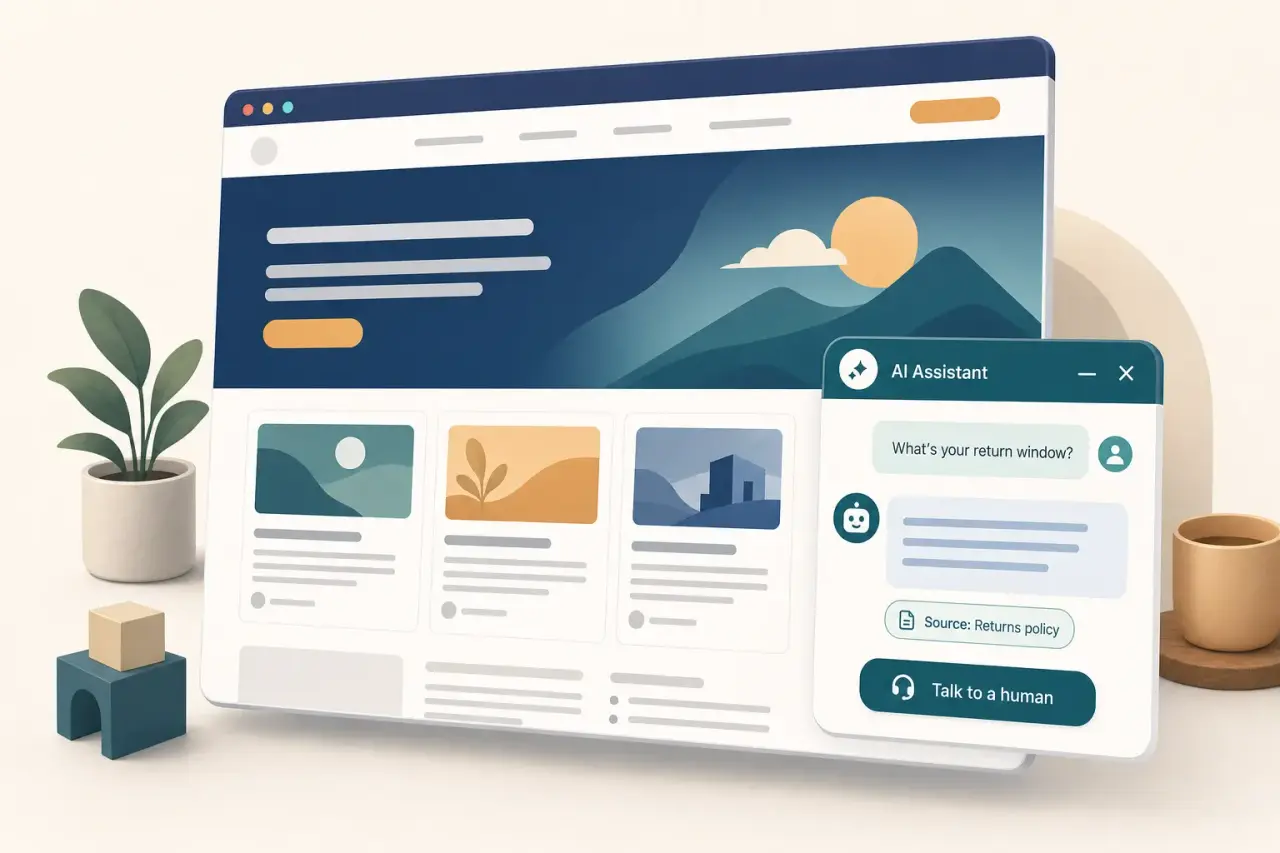
- Grounded answers with citations. Answers can show the source they came from, and you can inspect which source grounded an answer to debug and improve it (Citations docs).
- A domain allowlist for the widget. Restrict where the widget can load so it only runs on your site. The domain allowlist is available from the Starter plan ($39/mo billed annually, or $49/mo monthly) (Web widget docs) (Plans).
- Human handoff and a shared inbox. A visitor can ask for a person, the agent can escalate on its own, or an operator can take over from the helpdesk inbox. Human handoff to operators and the shared helpdesk inbox are available from the Growth plan ($119/mo billed annually, or $149/mo monthly) (Human handoff docs) (Conversations docs) (Plans).
Be honest about the limit: Owlish grounds answers on the content you ingest — it doesn’t connect to your Squarespace Commerce orders, Acuity bookings, or Member Areas accounts. So it answers the general “what’s your return policy” from your policy page and hands off “where is my specific order.” If your top priority is automated, account-specific lookups wired into Commerce or Scheduling, you’ll want a tool built around that integration. If your priority is grounded answers to the repetitive policy, service, and FAQ questions — with citations and clean handoff — that’s exactly what Owlish is for.
Squarespace AI chatbot launch checklist
- Check your Squarespace plan; confirm Core or higher for sitewide Code Injection.
- Read the last few hundred contact-form, inbox, and Scheduling questions; group them by intent.
- Rank intents by volume and risk; pick a few high-volume, low-risk ones to start.
- Reconcile your pages so each topic has one clear, dated answer.
- Add your site, policy and FAQ pages, and PDFs as sources.
- Configure the agent and copy its embed snippet.
- Paste the snippet into Code Injection → Footer, not the Header, and save.
- Restrict the widget to your domain; hard-refresh and test in a private window.
- Write handoff rules for orders, bookings, complaints, and “ask for a person.”
- Test real customer questions, including on mobile, before announcing it.
- Read conversations by hand for two weeks and fix weak pages.
- Track resolved conversations and real deflection, not message counts.
What to measure (and what to ignore)
Message counts are easy to see and almost useless — a chattier bot is not a better bot. Track outcomes instead:
- Resolved conversations the agent handled fully without a human.
- Repeat questions that disappeared after you fixed a page.
- Handoffs caused by genuinely missing knowledge (a content gap to fill) versus handoffs that are working as designed (risky topics).
- Real deflection, not a visitor giving up — a closed chat is not the same as a solved problem.
If you want the deeper version of this, our guide to ticket deflection rate explains why deflection and resolution aren’t the same number, and how to avoid faking the metric. For grounding specifically, why grounded answers matter covers why citations are the difference between a helpful bot and a confident wrong one.
FAQ
Can I add a chatbot to Squarespace on the Basic plan?
Not as a sitewide floating widget. Code Injection — the panel that loads a script on every page — requires the Core plan or higher; it’s not available on Basic (Squarespace: Using code injection). On Basic you can still place a Code Block on a single page (Code Blocks are available on all plans), but the chat will only appear on that one page. To run a chat bubble across your whole site, upgrade to Core or higher.
Where exactly do I paste the chatbot code in Squarespace?
In Settings → Advanced → Code Injection, into the Footer field — not the Header. Footer code loads before the closing </body> tag on every page, so the widget doesn’t block your content from rendering (Squarespace: Using code injection). Save, then hard-refresh your site in a private window to confirm the bubble appears.
Does Squarespace have a built-in AI customer support chatbot?
No. Squarespace ships AI features for building a site (generating copy, design text, and alt text), but not a customer-support agent that answers visitor questions from your own pages. That capability comes from a third-party chat widget you embed via Code Injection.
Will an AI chatbot slow down my Squarespace site?
A well-built widget loads asynchronously and shouldn’t block rendering, especially when the snippet is in the Footer rather than the Header. The bigger speed risk is stacking multiple chat, popup, and tracking scripts that each load their own code. Keep your Code Injection lean and test your page on mobile, where most Squarespace traffic lands.
Can the chatbot answer questions about a specific customer’s order or booking?
Only if it integrates with your store or scheduling system. A content-trained chatbot like Owlish answers the general question from your pages (“orders ship in 1–2 business days”) and hands off the specific one (“where is my order #1234” or “move my Tuesday appointment”). If you need automated Commerce order lookups or Acuity/Scheduling changes, confirm the tool connects to those systems before you promise it to customers.
Squarespace and Acuity Scheduling are trademarks of Squarespace, Inc. Other product names mentioned are trademarks of their respective owners. Owlish is not affiliated with or endorsed by Squarespace. Plan names, pricing, and feature availability described here were checked against Squarespace’s public documentation in June 2026; verify current behavior in your own dashboard, since platforms change over time.
An AI chatbot earns its place on a Squarespace site when it has a narrow job, grounded answers, and a fast stop point — not when it tries to do everything and clashes with the clean design you chose Squarespace for. Start with your highest-volume policy and FAQ questions, ground it in the pages you already wrote, and expand once visitors and your team trust it.
If you want to try that in Owlish, build your first agent, point it at your Squarespace site and PDFs, test the questions your visitors already ask, and paste the widget snippet into your Footer before you announce it.