Wix changed its own AI chat product in March 2026, and most “add a chatbot to Wix” guides haven’t caught up. If you want a support agent that actually answers from your pages instead of just building them, here’s what changed, which plan you need, and where the install trips people up.
This guide covers what Wix’s native AI chat now is (and isn’t), the plan tier that decides whether Custom Code works at all, exactly where to paste an embed snippet, the Wix-specific gotchas — including a December 2025 security change that broke some existing embeds — and how to ground the agent in your own content with a clean handoff. The first half is tool-agnostic. The “Where Owlish fits” section near the end covers our product, because Owlish is ours.
Wix’s native AI chat changed in March 2026 — know which one you’re looking at
Wix has shipped AI chat features directly in its editor for a while, but the product changed shape recently. As of March 2026, Wix AI Site Chat is no longer available to install on new sites — it’s been replaced by Wix Smart Chat, installed from the Wix App Market (Wix Help Center: Wix AI Site Chat overview).
That matters for two reasons. First, if you’re reading an older guide or forum post that references “AI Site Chat,” it’s describing a product Wix has since retired for new installs — verify current behavior in your own dashboard rather than trusting a screenshot from last year. Second, and more importantly: Wix’s native chat is built for general visitor conversations inside the Wix ecosystem, not for a support agent that’s grounded in your specific policies, ingests your PDFs, shows a citation trail back to the page it used, and hands off to a specific human on your team when it shouldn’t guess. If that’s what you need, you’re adding a third-party tool on top of (or instead of) Wix’s own chat — which is what the rest of this guide walks through.
First, check whether your Wix plan can run Custom Code
This is the step that decides whether a third-party chatbot works on Wix at all, and it’s easy to get wrong because the editor behaves differently than the published site.
The iFrame Embed element — the piece you’d use to drop in a widget — is available in the Wix Editor on every plan, including Domains and free sites, for the purposes of designing your page. But Custom Code only takes effect on a published site with a paid plan; on a free plan, code you add either won’t run once published, or the page can’t be published with a connected domain in the first place (Wix Help Center: About embeds and codes on your site). For any Custom Element specifically, Wix additionally requires a Premium plan, a connected domain, and no ads on the site (Wix Help Center: Wix Editor elements and codes).
The practical rule:
- Any paid Wix plan (Light and above) — Custom Code runs on your published site. The rest of this guide applies directly.
- Free plan — you can build and preview the widget in the editor, but it won’t function the way you need on a live, published site. Upgrade before you promise a chatbot to visitors.
- Studio Editor — the newer Wix Studio product has its own equivalent embed and custom-code panels; the mechanics are the same idea, different menu labels.
If you’re not sure which plan you’re on, check Settings → Billing & Payments in your Wix dashboard before you go further. The gap between “the widget loads in the editor” and “the widget loads for a real visitor” is the single most common reason a Wix chatbot install looks broken.
Why a website-builder AI doesn’t replace a grounded support agent
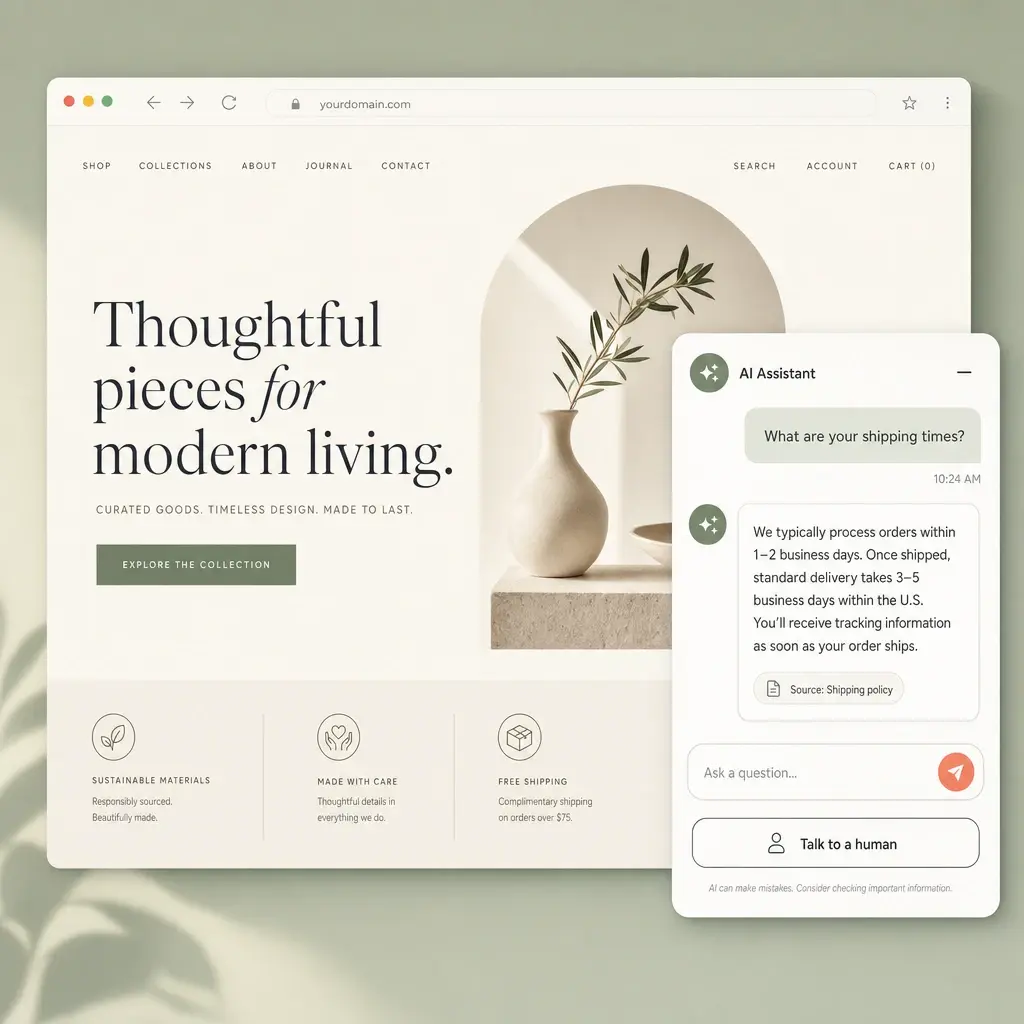
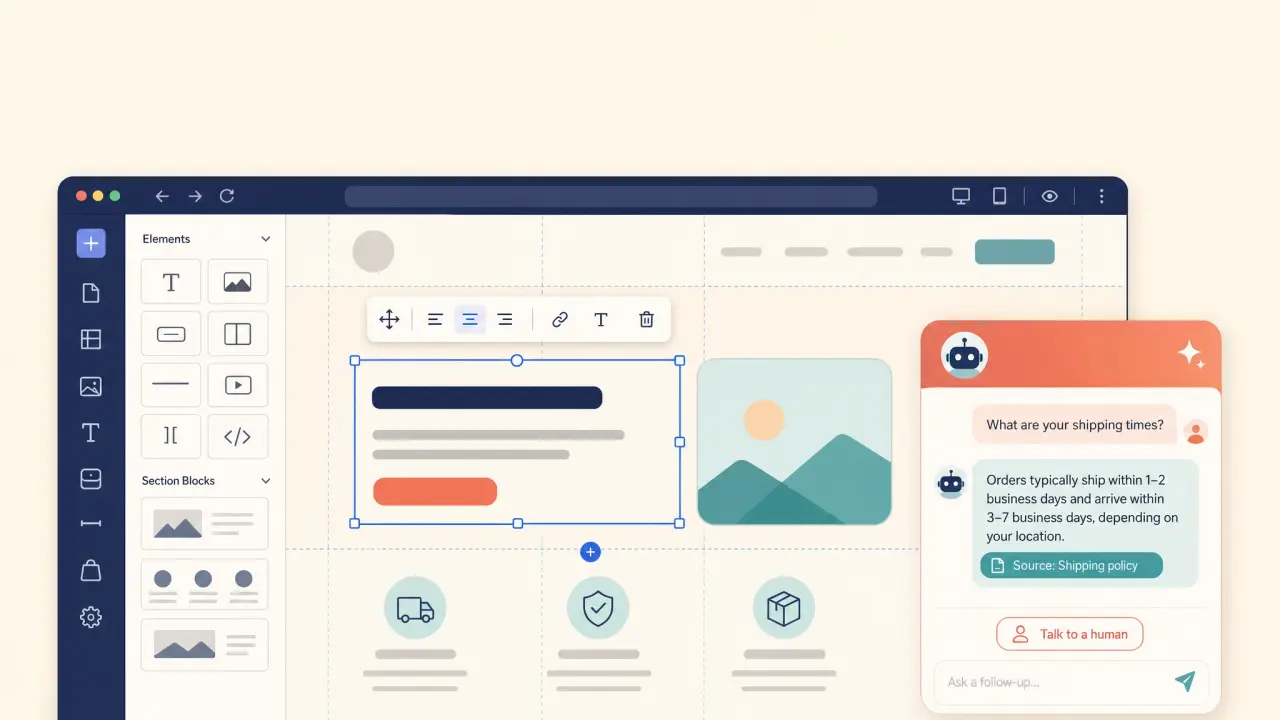
Wix’s editor-side AI is genuinely useful for building — generating copy, suggesting layout, writing alt text — and Smart Chat adds a conversational layer for visitors browsing your site. Neither is the same job as an agent that reads your shipping policy, your refund PDF, and your FAQ page, and answers “what are your shipping times?” with a link back to the exact page it used.
That distinction matters for trust. A generic chat assistant that improvises an answer about your return window is a liability, not a feature — customers act on what it tells them. You want an agent whose answers are traceable to content you wrote and can point to, not a model’s best guess dressed up as a confident reply.
Step 1: Decide the bot’s job before you touch any code
Before installing anything, pull the last few hundred questions you’ve actually received — through your Wix site’s contact form, Wix Chat/inbox, Wix Bookings messages, or your inbox — and group them by intent. You’ll usually find a short list doing most of the volume:
- shipping times, costs, and order status;
- returns, exchanges, and refunds;
- booking, rescheduling, and cancellation policy (if you use Wix Bookings);
- product or service details (sizing, materials, what’s included);
- hours, location, and contact options.
Rank these by volume and risk, and start the bot on the high-volume, low-risk ones. A bot that nails your top five repetitive questions and cleanly hands off everything else beats one that tries to answer everything and gets the important parts wrong.
Step 2: Reconcile your pages so the bot has one clear answer
An AI agent grounded in your content is only as good as the content. Wix sites built by hand over time tend to accumulate the same answer in a few slightly different places — a policy line in the footer, a different number on a product page, a stale note in an old blog post. When two pages disagree, the bot will sometimes cite the wrong one.
Before launch, do a quick reconciliation pass: give each topic one canonical page, make sure that page is current and dated, and put exceptions (“final-sale items can’t be returned”) right next to the rule they modify rather than three sections away. This work pays off twice — the bot gets more accurate, and human visitors get clearer pages too.
Step 3: Ground the agent in your Wix content
With a modern AI support tool, this means pointing it at your published site so it can crawl your pages, plus adding anything your pages don’t cover:
- Your Wix site — most support tools discover pages via your sitemap or by following links, then extract the main content and strip navigation and footer boilerplate. Wix sites are heavily JavaScript-rendered; a capable crawler handles that automatically rather than needing a special static export.
- Files — upload PDFs (size guides, care instructions, policy documents) and any other files that hold answers your pages don’t.
- Short direct answers — for the handful of questions where exact wording matters (“Do you ship internationally? Yes, to 30+ countries, calculated at checkout”), set those explicitly rather than hoping the model phrases it well on its own.
The goal is that every answer traces back to a source you control. If a question isn’t covered, you want the bot to say so and offer a human, not invent an answer.
Step 4: Embed the widget through Custom Code
Once your agent is configured, you’ll have a small embed snippet — typically a single <script> tag. On Wix:
- In your Wix dashboard, go to Settings → Custom Code.
- Click Add Code, paste the snippet, and give it a name.
- Under Place Code in, choose Body – end (not Head) — this loads the widget after your page content, so it doesn’t block rendering (Wix Help Center: Embedding custom code on your site).
- Under page scope, choose All pages so the chat bubble follows visitors sitewide.
- Save, then Publish your site — Custom Code changes don’t take effect until you publish.
That’s the sitewide path most sites want. If you’d rather scope the widget to a single page (a dedicated “Help” or “Contact” page), choose Choose specific pages instead of All pages in step 4.
Step 5: Know the alternative path — the HTML iFrame element
If you want more visual control over where the widget sits in your layout (rather than a floating bubble injected sitewide), Wix also supports embedding a code widget through the HTML iFrame element: from the editor’s Add Elements panel, choose Embed → Custom Embeds → Embed a Widget, then paste your snippet (Wix/Velo docs: Embedding a code widget in an HTML iFrame element). This places the widget as a page element you can position and resize, rather than a global sitewide script. For most support use cases, sitewide Custom Code (Step 4) is simpler and is what this guide assumes from here.
Step 6: Lock the widget to your domain and test like a visitor
Restrict the widget to your domain. A good chat tool lets you allowlist the domains the widget is allowed to load on, so your snippet can’t be copied and run on someone else’s site. Add your live Wix domain, and any *.wixsite.com preview URL you’re testing on.
Test like a real visitor, in a private window. Wix caches published pages, so a change can take a moment to appear. Confirm the bubble loads on more than one page, ask the questions your customers actually ask, and watch for the bot handing off instead of guessing when it doesn’t know, and for the widget not colliding with other elements — a cookie banner, a Wix Chat bubble if you also have that enabled, or a “Book Now” button.
Step 7: Set handoff rules so the bot knows when to stop
The single most important setting on any support bot is when it stops and brings in a person. On a Wix site, the clear handoff triggers are:
- anything account- or order-specific (“where is my order,” “move my appointment”);
- complaints and refund disputes;
- a visitor who explicitly asks for a human;
- any topic you’ve flagged as too risky for AI (legal, medical, anything money-sensitive).
Decide these rules before launch, not after the first awkward transcript.
Wix-specific gotchas to plan around
A few things catch Wix users specifically:
- The Spaces by Wix mobile app doesn’t run Custom Code. If your business uses a Wix-generated member app (Spaces by Wix) alongside your website, know that member apps do not support custom code or backend customization — your chat widget will show on the web site but not inside the native app (Wix Help Center: Customizing your site on the member apps).
- December 2025 security changes can break old snippets. Wix introduced new frontend security measures for custom code on Wix sites in December 2025; some third-party embeds that worked before that change were blocked until the provider updated them. If a chatbot snippet that used to work suddenly stops, check for an updated embed script from your provider before assuming your Custom Code setup is broken.
- Wix Stores and Wix Bookings are account-specific systems the bot can’t see by default. A content-trained bot can explain your general shipping or booking policy from your pages, but it can’t look up a specific customer’s order or move a specific appointment unless it’s separately integrated with those systems.
- Mobile layout on the web. Wix sites get significant mobile traffic through the responsive web version (distinct from the Spaces app above). Check that the chat bubble doesn’t cover your menu or checkout button on a phone-sized viewport.
- Preview vs. published state. Custom Code changes save into the editor but only run for real visitors after you publish. Testing in the editor’s preview mode isn’t a substitute for testing the live URL.
Where Owlish fits
Owlish is a no-code AI support agent that answers from your own content, shows where each answer came from, and hands off to a human when a question shouldn’t stay with AI. For a Wix site, that maps to the workflow above:
- Embeds on Wix via Custom Code. Owlish gives you a per-agent embed snippet. Paste it into Settings → Custom Code, set placement to Body – end, scope to All pages, and publish — the path from Step 4. There’s no Wix App Market listing to install or maintain; one script tag works regardless of your template. The web widget is included on every plan, including the Free plan, so you can start at no cost (Web widget docs) (Customize the widget).
- Trains on your Wix content. Point it at your published site to ingest your pages — including JavaScript-rendered ones, with no special export needed — and add files (PDF, DOCX, TXT, Markdown) plus short direct responses, so answers come from sources you control (Website sources) (File sources).
- Grounded answers with citations. Answers can show the source they came from, and you can inspect which source grounded an answer to debug and improve it (Citations docs).
- A domain allowlist for the widget. Restrict where the widget can load so it only runs on your site. The domain allowlist is available from the Starter plan ($39/mo billed annually, or $49/mo monthly) (Web widget docs) (Plans).
- Human handoff and a shared inbox. A visitor can ask for a person, the agent can escalate on its own, or an operator can take over from the helpdesk inbox. Human handoff to operators and the shared helpdesk inbox are available from the Growth plan ($119/mo billed annually, or $149/mo monthly) (Human handoff docs) (Conversations docs) (Plans).
Be honest about the limit: Owlish grounds answers on the content you ingest — it doesn’t connect to your Wix Stores orders or Wix Bookings appointments, and it doesn’t run inside the Spaces by Wix mobile member app, since that app doesn’t support custom code at all. So it answers the general “what’s your return policy” from your policy page and hands off “where is my specific order.” If your top priority is automated, account-specific lookups wired into Stores or Bookings, you’ll want a tool built around that integration, or Wix’s own Smart Chat for in-ecosystem conversations. If your priority is grounded answers to the repetitive policy, service, and FAQ questions — with citations and clean handoff — that’s what Owlish is for.
Wix AI chatbot launch checklist
- Confirm you’re on a paid Wix plan (Custom Code doesn’t run on Free once published).
- Check whether “AI Site Chat” guides you’re reading still apply — Wix replaced it with Smart Chat for new sites in March 2026.
- Read your last few hundred contact-form, inbox, and Bookings questions; group them by intent.
- Rank intents by volume and risk; pick a few high-volume, low-risk ones to start.
- Reconcile your pages so each topic has one clear, dated answer.
- Add your site, policy and FAQ pages, and PDFs as sources.
- Configure the agent and copy its embed snippet.
- Paste the snippet into Settings → Custom Code, placement Body – end, scope All pages, then publish.
- Restrict the widget to your domain; test the live URL in a private window, not just the editor preview.
- Write handoff rules for orders, bookings, complaints, and “ask for a person.”
- Confirm the widget appears on the web site and set expectations that it won’t appear inside the Spaces by Wix member app.
- Test real customer questions, including on mobile, before announcing it.
What to measure (and what to ignore)
Message counts are easy to see and mostly useless — a chattier bot is not a better bot. Track outcomes instead: resolved conversations the agent handled fully without a human, repeat questions that disappeared after you fixed a page, and handoffs caused by genuinely missing knowledge (a content gap to fill) versus handoffs that are working as designed (risky topics).
If you want the deeper version of this, our guide to ticket deflection rate explains why deflection and resolution aren’t the same number, and why grounded answers matter covers why citations are the difference between a helpful bot and a confident wrong one.
FAQ
Can I add an AI chatbot to a free Wix site?
You can build and preview it in the Wix Editor, but Custom Code only takes effect on a published site with a paid plan — on Free, the script either won’t run on your live site or the site can’t be published with a connected domain (Wix Help Center: About embeds and codes on your site). Upgrade to any paid Wix plan before promising a chatbot to visitors.
What happened to Wix AI Site Chat?
As of March 2026, Wix AI Site Chat is no longer available to install on new sites; Wix Smart Chat, installed from the Wix App Market, replaced it as Wix’s AI and manual chat product (Wix Help Center). It’s a separate product from a third-party support agent that grounds answers in your specific content with citations and handoff.
Where exactly do I paste the chatbot code in Wix?
Settings → Custom Code → Add Code. Paste the snippet, set placement to Body – end (not Head), set scope to All pages for a sitewide widget, save, and publish. Custom Code changes only take effect after you publish, not while you’re still in the editor (Wix Help Center: Embedding custom code on your site).
Will a chatbot show up in my Wix mobile app (Spaces by Wix)?
No. Spaces by Wix and other Wix member apps don’t support custom code or backend customization, so a Custom Code chat widget will appear on your web site but not inside the native member app (Wix Help Center).
Can the chatbot look up a specific customer’s Wix Stores order or Wix Bookings appointment?
Only if it’s separately integrated with those systems. A content-trained chatbot like Owlish answers the general question from your pages (“orders ship in 1–2 business days”) and hands off the specific one (“where is my order #1234” or “move my Tuesday appointment”). Confirm a tool actually connects to Stores or Bookings before you promise automated order or booking lookups to customers.
Wix, Wix Stores, Wix Bookings, and Spaces by Wix are trademarks of Wix.com Ltd. Other product names mentioned are trademarks of their respective owners. Owlish is not affiliated with or endorsed by Wix. Plan names, feature availability, and platform behavior described here were checked against Wix’s own Help Center and developer documentation in July 2026; verify current behavior in your own dashboard, since platforms change over time.
An AI chatbot earns its place on a Wix site when it has a narrow job, grounded answers, and a fast stop point — not when it tries to replace Wix’s own tools or answer questions it was never given the content to answer. Start with your highest-volume policy and FAQ questions, ground it in the pages you already wrote, and expand once visitors and your team trust it.
If you want to try that in Owlish, build your first agent, point it at your Wix site and PDFs, test the questions your visitors already ask, and paste the widget snippet into Custom Code before you announce it.