How to Add an AI Chatbot to Your Website
A practical website chatbot setup guide for support teams: choose the first use case, prepare sources, test citations, install the widget, and plan handoff.
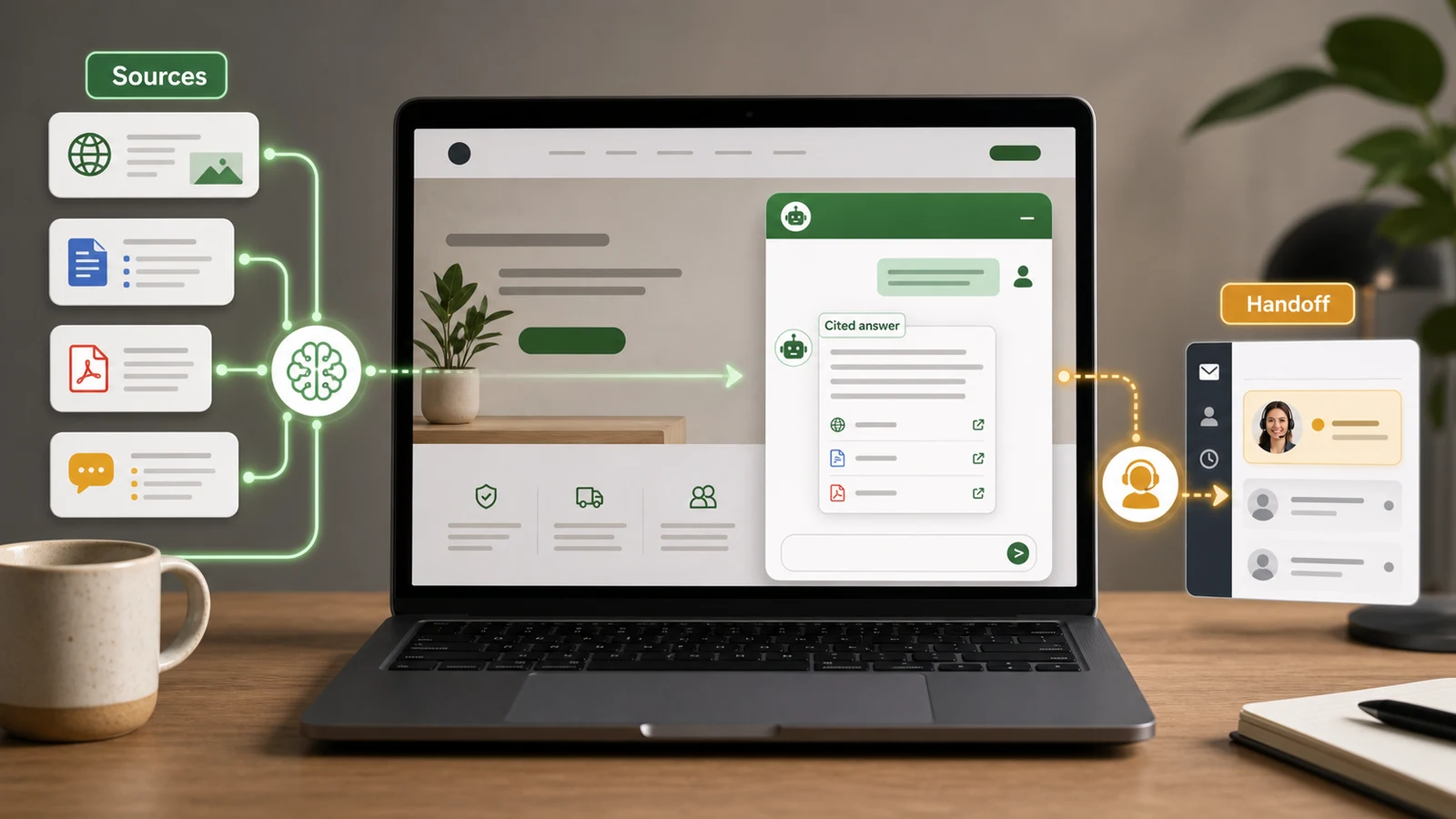
An AI chatbot for your website is useful only if it can answer from the same sources your support team trusts. If it guesses, hides the source, or traps customers when it should hand off, it becomes another support problem.
This guide shows how to add an AI chatbot to a website without turning your help center into a black box. The workflow is tool-agnostic for the first half, then I will show where Owlish fits because Owlish is our product.
That practical entry point matters. The Australian Government’s National AI Centre reported in May 2026 that 19% of non-adopting Australian SMEs said they did not know how to use AI in their business, while about 65% cited distrust in AI decision-making or a preference to maintain human control. A website chatbot setup guide should answer both concerns: where to start, and how people stay in control. AI.gov.au
Start with one support job, not every question
The fastest way to make a website chatbot bad is to ask it to answer everything on day one.
Start with one support job that is frequent, low-risk, and already documented. Good first jobs include:
- plan, pricing, and feature explanations
- shipping, returns, and cancellation policy questions
- setup and troubleshooting steps
- product fit questions for a narrow audience
- account navigation questions that do not require private data
Avoid starting with billing exceptions, legal requests, medical or safety advice, account ownership disputes, angry complaints, and anything that needs a human judgment call.
The question to ask is not “Can the model answer this?” The question is “Can the chatbot cite a current source for this answer, and should a customer be allowed to act on it without a human?”
Map customer questions before you upload sources
Most teams start by uploading docs. That is backwards.
Start with the questions customers already ask:
- Pull 50-100 recent chats, emails, tickets, sales calls, or contact-form submissions.
- Group them by intent. “How do I cancel?”, “Will I be charged again?”, and “Can I stop renewal?” may all point to one cancellation policy.
- Mark each group as safe for AI, needs human review, or do not answer.
- Find the public source that proves each safe answer.
- Rewrite thin or vague sources before you let the bot use them.
This is where website chatbot setup becomes operational work, not just a widget install.
SiteGPT’s guide to choosing and setting up an AI chatbot for a website frames setup around goals, knowledge sources, and testing, not just embedding a script. That is the right durable pattern: the widget is the last mile, not the product. SiteGPT
Use source types deliberately
A good AI chatbot for website support usually needs more than one source type.
Use each type for a specific job:
- Website pages for public help-center articles, docs, product pages, pricing pages, and policy pages.
- Files for manuals, setup guides, onboarding PDFs, product sheets, and internal support references that are safe for the intended audience.
- Direct answers for short canonical responses that do not deserve a full article yet.
- Exclusion rules for pages that should not train the chatbot, such as legal drafts, old docs, tag archives, thin marketing pages, or gated content.
Chatbase’s public data-source docs show the same practical range: teams often train a chatbot from websites, files, text, Q&A pairs, and Notion rather than one source alone. The important part is not the vendor. It is that each source has a reason to exist. Chatbase Docs
Do not upload everything just because you can. More content can make answers worse if it adds duplicates, stale policies, and overlapping definitions.
Write sources for retrieval, not just humans
Human readers forgive vague headings. Retrieval systems do not.
If a customer asks “Can I pause my subscription?”, a section titled “Account lifecycle” is harder to retrieve than a section titled “How to pause or cancel your subscription.” The wording matters because the chatbot has to find the right chunk before the model writes the answer.
Make source content easier for a website chatbot to retrieve:
- Put one answer per section.
- Use customer language in headings.
- Keep eligibility rules near the answer they modify.
- Spell out acronyms.
- Add examples for questions customers phrase many ways.
- Remove outdated duplicates.
- Put policy exceptions in the source, not in an operator’s memory.
Bad source text:
Refunds are considered according to account status and usage.
Better source text:
Refund requests are reviewed case by case. If you cancelled before renewal but were charged again, contact support with your invoice date and cancellation confirmation.
The second version gives the chatbot a narrower answer and a safer handoff path.
Configure refusals before launch
Every website AI chatbot needs permission to stop.
Write refusal and handoff rules before the first visitor sees the widget. The bot should stop when:
- it cannot find a relevant source
- the cited source is stale or ambiguous
- the customer asks for a person
- the customer is stuck in a repeated clarification loop
- the issue involves billing exceptions, account ownership, private data, legal risk, or a complaint
- the answer could cost the customer money, access, or trust
Intercom’s Fin documentation describes automatic escalation patterns for cases like a customer asking for a human, showing strong frustration, or getting stuck in a loop. Even if you use another tool, the principle is useful: escalation should be designed, not improvised after customers complain. Intercom Help
The refusal copy should also be plain. Do not say “I cannot assist.” Say what happens next:
I do not have a current source for that answer. I can hand this to our team with the context so you do not have to repeat it.
That is a much better experience than a confident unsupported answer.
Test the chatbot like a support lead
Do not launch after one happy-path prompt.
Create a pre-launch test set:
- 20 common questions the chatbot should answer
- 10 edge cases the chatbot should refuse or hand off
- 5 questions with old wording or misspellings
- 5 questions that mention a competitor, plan, or policy boundary
- 5 questions your public docs do not answer
For each test, score four things:
- Answer accuracy. Did it answer the actual question?
- Citation quality. Did it cite the right source?
- Refusal quality. Did it stop when no source existed?
- Handoff quality. Would a human know what happened next?
Zendesk’s handoff and handback documentation makes a useful distinction: handoff moves the conversation to a live agent, while handback lets automation resume when the conversation context allows it. Website chatbot testing should cover both paths, not only first-response accuracy. Zendesk Help
Install the widget after the answer path is proven
The website install step should be boring.
If your site runs on Webflow, use the platform-specific Webflow chatbot setup guide for the choice between a sitewide Footer-code widget and an in-page Code Embed, plus a live-page launch test. For Framer, use our Framer chatbot setup guide to choose between sitewide Custom Code and a deliberate inline Embed, then run a published-site source, domain, handoff, and mobile test. For HubSpot CMS, use our HubSpot website chatbot guide to decide whether the first job needs CRM context or a separate public-knowledge layer before choosing page- or domain-level code snippets.
Before embedding the widget, decide:
- which domains are allowed to load it
- whether citations are visible to visitors
- what greeting and starter prompts appear
- when the chatbot offers human handoff
- who receives handoffs
- whether the first launch is site-wide or limited to support pages
- what analytics you will review after the first week
For many teams, the safest launch is not the homepage. It is the help center, docs, pricing FAQ, or a few product pages with well-written sources.
If the chatbot performs well there, expand it to higher-traffic pages.
Use our website chatbot placement guide to decide which page families should get that first rollout and how to keep the launcher clear of the page’s own controls.
Measure resolved questions, not just deflection
Deflection is tempting because it is easy to count. It can also hide bad customer experience.
Track metrics that show whether the chatbot is helping:
- questions answered with the right citation
- questions refused because no source existed
- late handoffs where the bot should have stopped earlier
- repeated questions after a bot answer
- new source gaps found by customer questions
- customer satisfaction after AI-only answers
- customer satisfaction after human handoff
Microsoft’s 2026 Work Trend Index argues that the next stage of AI adoption depends on redesigning work around agents, not just giving people a model to chat with. For customer support, that redesign is concrete: source ownership, QA, escalation, and measurement. Microsoft WorkLab
The useful weekly question is: “Which source or handoff rule should we fix because of what customers asked?”
Where Owlish fits
Owlish is built for teams that want the website chatbot to answer from real support knowledge, cite sources, and hand over when the answer should stop.
The current workflow supports:
- Website sources. Add help centers, docs, and public pages, then use allow and exclude patterns to control what gets crawled. Website source docs
- File sources. Upload PDFs, DOCX, CSV, TXT, Markdown, and static HTML for support material that should not live on a public page. File source docs
- Direct Response entries. Add short canonical answers for repeated questions that do not need a full article. Direct Response docs
- Widget deployment. Install the web widget, configure allowed domains, and choose whether visitors see citations. Web widget docs
- Citations. Use citation chips to inspect which source grounded an answer, then fix the source when the answer is wrong. Citations docs
- Human handoff. Let a visitor ask for a person, let the agent decide to hand off, or let an operator take over from the inbox. Human handoff docs
Owlish is a strong fit when you want no-code setup, website and document ingestion, cited answers, and a practical path from AI to human support.
It is not the best first choice if you need a voice-first contact center, a deep enterprise ticketing migration, or custom back-office actions across many systems on day one. In that case, start with a full helpdesk suite or a custom implementation and add website AI after the core workflow is settled.
Website chatbot launch checklist
Use this before the first public launch:
- Pick one support job for the first version.
- Group real customer questions by intent.
- Mark each intent as AI-safe, handoff, or do not answer.
- Attach a current source to every safe answer.
- Remove stale, duplicate, and internal-only content.
- Write refusal rules for missing sources and risky topics.
- Test common questions, edge cases, and unknowns.
- Inspect citations for every important answer.
- Decide where the widget appears first.
- Review source gaps and handoff quality after week one.
FAQ
What is the best AI chatbot for a website?
The best AI chatbot for a website depends on the job. A small support team usually needs a bot that can crawl the site, ingest documents, cite sources, and hand off cleanly. A larger team may need deeper helpdesk routing, ticketing, phone support, workforce management, or custom actions.
How do I add an AI chatbot to my website?
Choose the first support use case, prepare the source content, test answers and citations, configure refusal and handoff rules, then install the widget on a limited set of pages before expanding site-wide. The embed snippet is usually the easy part. The hard part is proving that the bot answers from trustworthy sources.
Should a website chatbot cite sources?
Yes for policy, pricing, account, shipping, troubleshooting, and product questions. Citations help customers verify the answer and help operators debug the source when the chatbot is wrong.
What should an AI chatbot not answer?
It should not answer questions that need private account data, legal or medical advice, billing exceptions, account ownership decisions, sensitive personal information, or policy judgment that your written sources do not cover. Those should move to a human support path.
How many pages do I need before launching a website chatbot?
You do not need a huge help center. You need enough current, specific sources to answer the first support job safely. Ten strong pages plus a few direct answers can beat 200 stale pages.
The best website chatbot setup is narrow at launch and honest when it does not know. Start with one support job, cite the sources, and widen the rollout only after the answers hold up under real questions.
If you want to try that workflow in Owlish, start with building your first agent, add one website source, enable citations in the web widget, and test the questions customers already ask.